The platform has two system-defined roles that cannot be deleted. Each enables different permissions and determines access to sections within Engage, depending on its scope.
In addition, users with the Administrator role can create and manage new roles, assigning them specific permissions according to the team's needs.
 Default roles:
- User (default): Profile with a standard operational scope and access to the product's main functionality.
- Administrator: Role with full capabilities, including operational, management, and user governance.
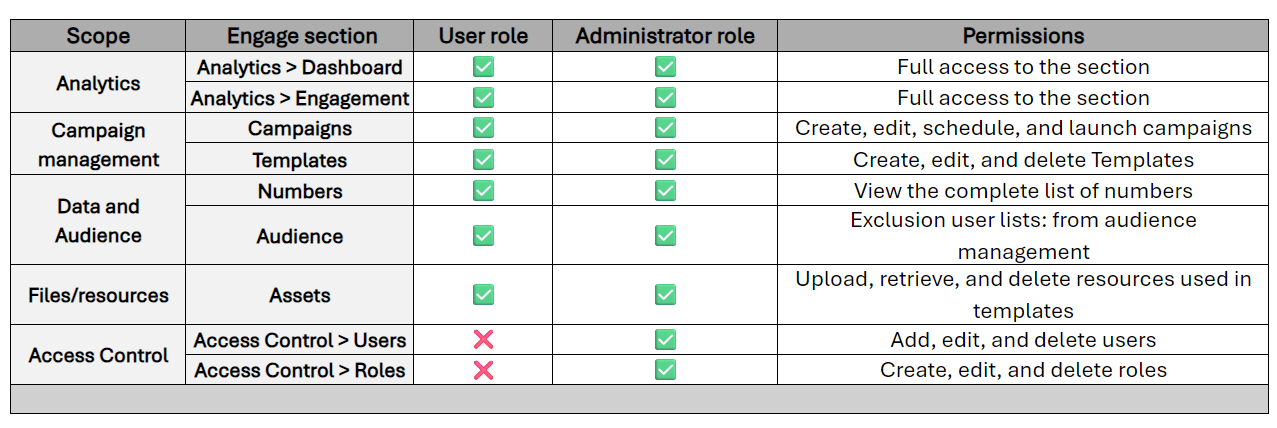
 The table below details the scope of each role, the enabled menu sections, and the permissions granted in each case.
 Key definitions:
✓ Role: a named set of permissions that determines which sections of the platform a user can access.
✓ Permission: full access to a specific section of the platform.
Role management applies only to the Administrator and enables:
-
Create a new role
- Role name (unique)
- Description (optional)
- Set of permissions (multiple selection from the catalog)
- Edit an existing role: you can modify the name, description, and permissions fields.
-
Delete a role
- Only if it is not assigned to any user.
- Default roles cannot be deleted.
- View role details
- List of associated permissions.
-
Number of assigned users.
- Assign a role to a user (only one per user).
- Change a user's role.
-
View a user's role in:
- User list.
- User detail view.
 In the Access Control section of Engage, you can perform all the necessary actions to manage each member of your team's profile who uses this platform. Learn more in the following article
  Access Control in Engage.
Principles and limitations:
- One user = one role: each user can have only one role assigned.
-
Permissions:
- Each permission grants full access to a section. Permissions are not assigned at the field or functionality level.
- Access to a section enables all its functionalities.
-
The role defines access:
- Permissions are not assigned directly to individual users. Instead, a permission is created, then incorporated into a role, and finally, the role with the defined scope is granted to a user.
- There are no dynamic, conditional, or contextual permissions.
- Users inherit their permissions exclusively from the assigned role.
- There is no access control based on time, IP, or environment.
> Behavior rules:
- Users only see the navigation items for the sections they have access to in the menu.
- Changing a role immediately updates user permissions.
- If a role loses a permission, users assigned to that role also lose it.
- Removing a permission removes both visibility and access to the section.
- A user without a role (invalid status) cannot access any section.
> Routing and APIs.
- The backend validates permissions on each request.
- Unauthorized access is handled as follows:
- UI: hidden or blocked section
- API: 403 Forbidden response