In the Autogenerated Knowledge section of Virtual Assistant, you can delete records found after searching for or processing information.
 This action applies to both links and PDF files uploaded locally or via a link.
 The main purpose of this feature is to allow you to define what information you want to provide to Generative AI so that it has an up-to-date and relevant knowledge base when generating responses for your customers.
 You have two ways to do this:
- Individually
- In bulk
• Delete an individual record: You can do this one by one from the tab you’re currently working on.
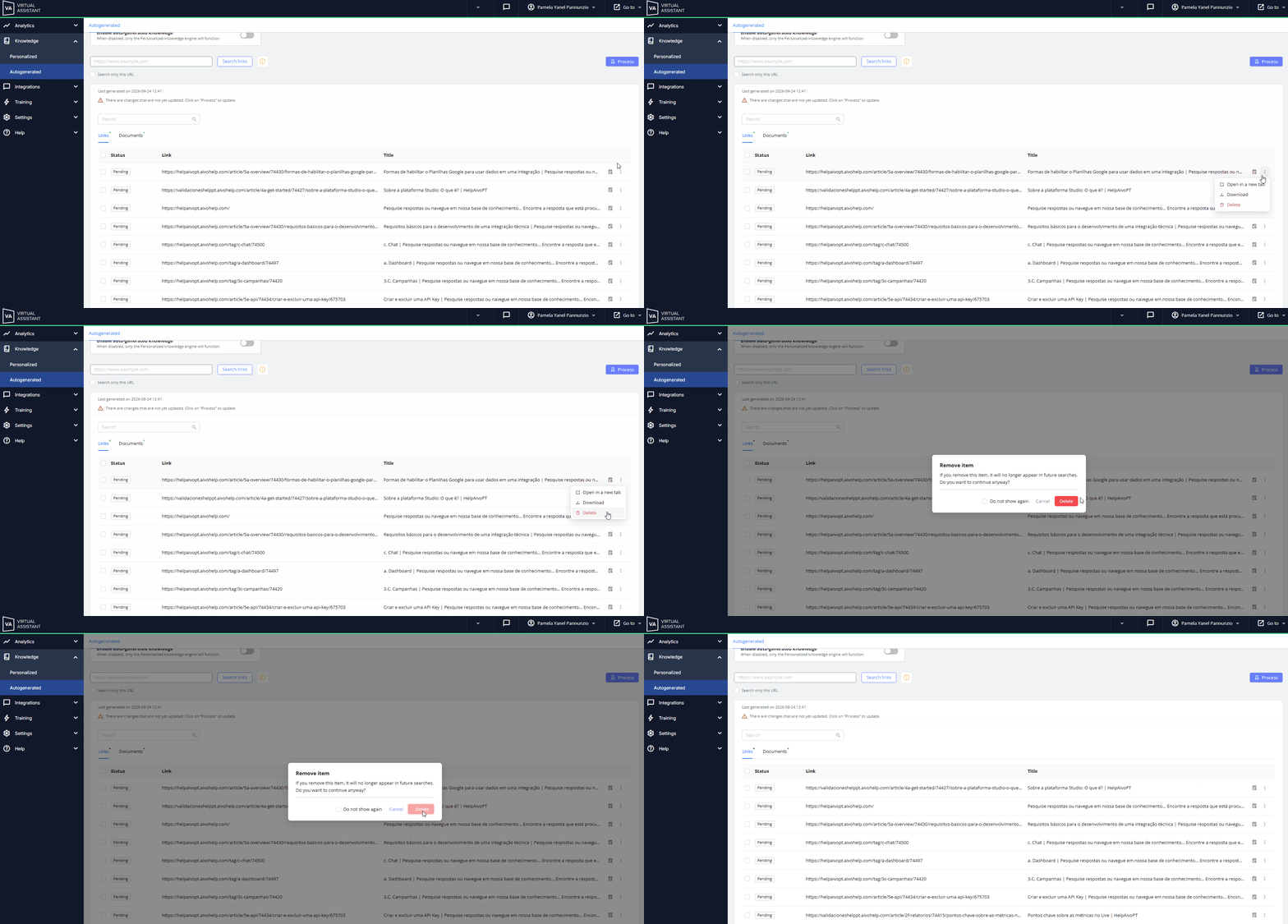
 Links Tab
- Locate the link you want to delete.
- Click the dropdown menu for the record.
- Select the Delete option.
- Confirm by clicking Delete.
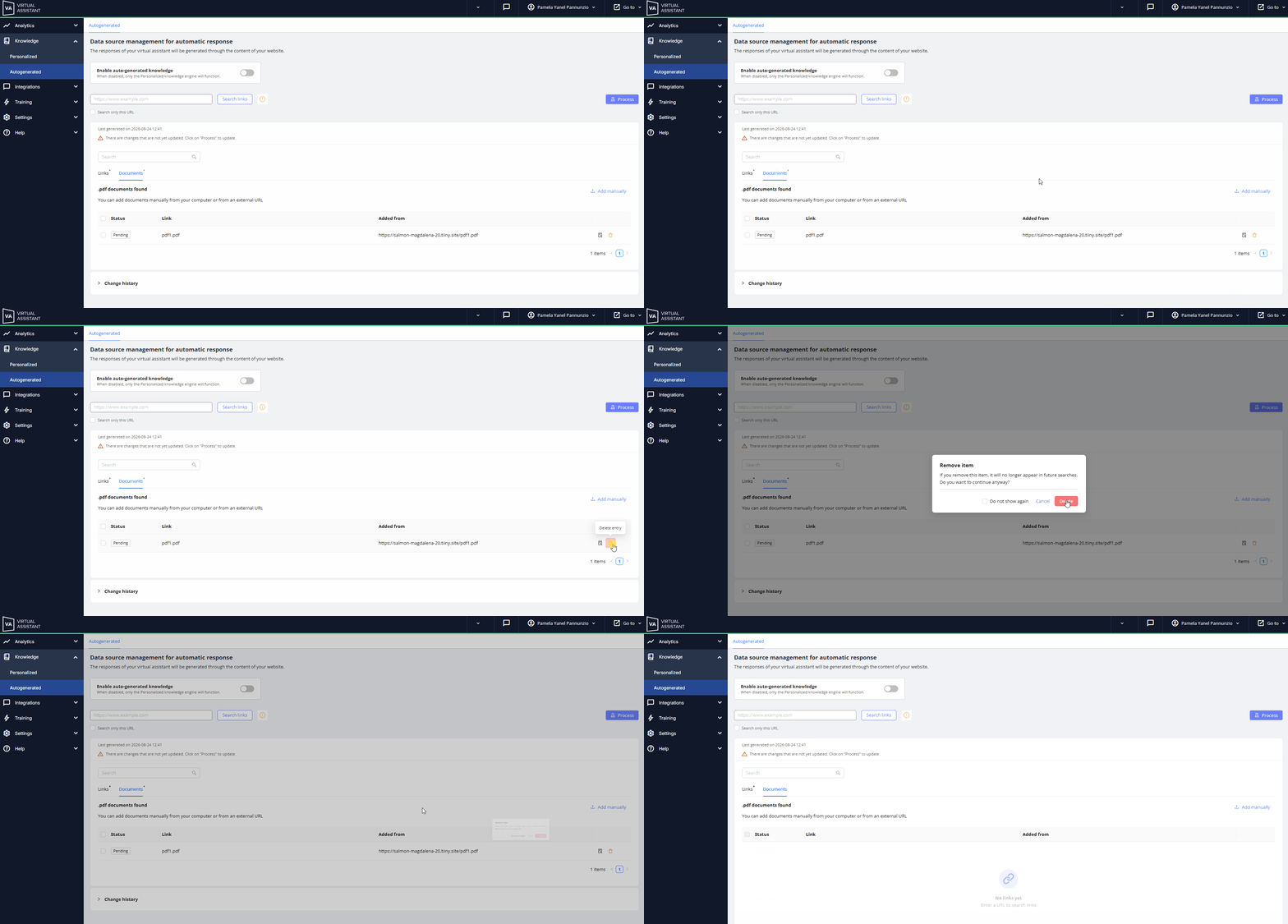
 Documents Tab
- Locate the document you want to delete.
- Click the trash can icon that appears at the bottom of the record.
- Confirm by clicking Delete.
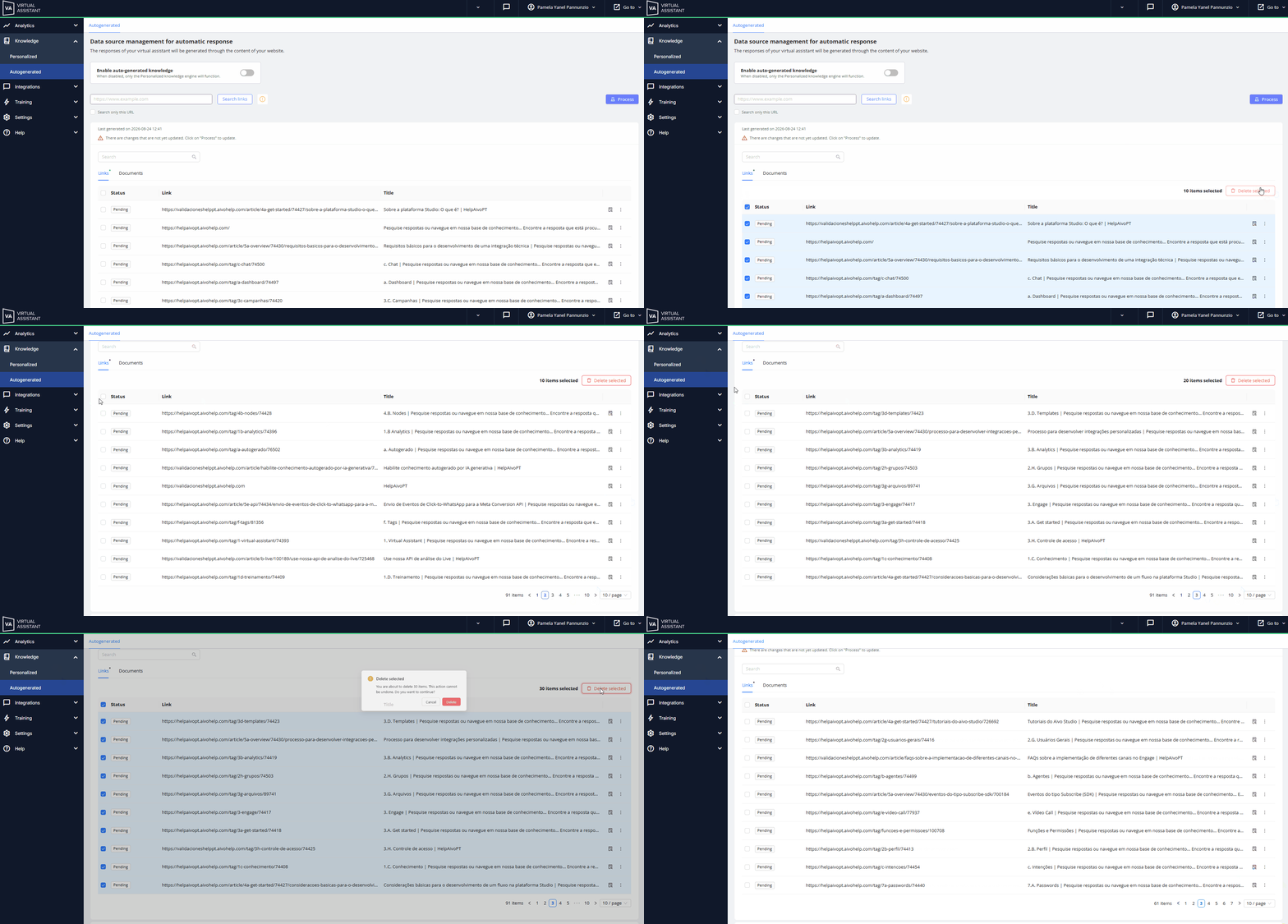
• Bulk deletion: You can delete more than one link or document at a time using a bulk selection.
- Go to the Links or Documents tab.
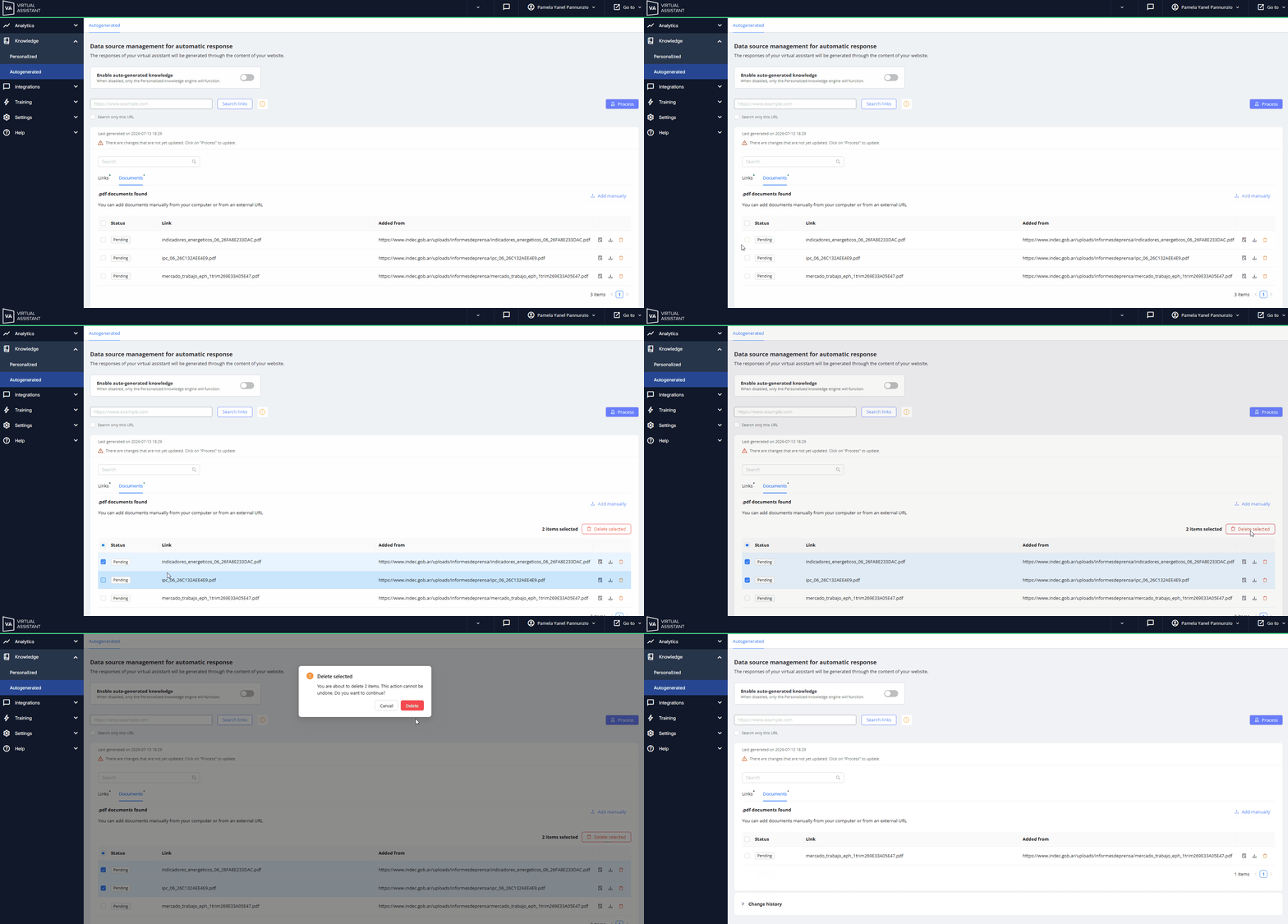
- Check the box next to the Status column at the top of the grid.
- Select the records you want to delete.
- Click the Delete Selected button.
- Confirm the deletion by clicking Delete.
|
|
 Key tip:
 Below is how the selection of records is displayed in each tab:
Links tab: selection of records to delete.
Documents tab: selection of some records to delete.
|
• Reprocess the information: If you delete records after processing the information and there are still records in the list of found links or documents, you must click Process again for the changes to take effect. • This is necessary whether you’re deleting a single record or performing a bulk deletion. |
 Important