This feature is especially useful for implementing flows such as appointment scheduling, as it allows you to present multiple options without having to create a separate intent in the Virtual Assistant for each available option.
 Node Configuration
The following fields are available for configuring the node:
- Name: Allows you to customize the node name displayed in the Studio workspace.
-
Type (required): Defines the behavior of the interactive list. The available options are:
- Message: Triggers an intent in the Virtual Assistant when the user selects an option from the list. To use this option, you must first create the corresponding intent in the Virtual Assistant.
- Next Step: Executes an integration within the same flow, allowing the conversation to continue without relying on an intent in the Virtual Assistant.
- Bot (required for Next Step): Displays all the bots you have access to, allowing you to select where the node will run.
- Next Step (required for Next Step): Specifies the step the flow will continue to after the user selects an option from the list.
- Ref (required): Internal identifier where the user's selected option will be stored.
- Header (optional): Text displayed as the interactive list header.
- Body (required): Tain text displayed to the user before opening the list.
- Footer (optional): Text displayed at the bottom of the message before the user opens the list.
- Title (required): Title of the interactive list. Supports a maximum of 64 characters.
- Button Label (required): Text displayed on the button that opens the interactive list.
 Options
Each option must be configured with the following fields:
- Value: Internal identifier where the selected option will be stored.
- Title: Option title. Supports a maximum of 64 characters.
- Description: Descriptive text for the option. Supports a maximum of 64 characters.
 Below, you can see a visual example of each of these elements: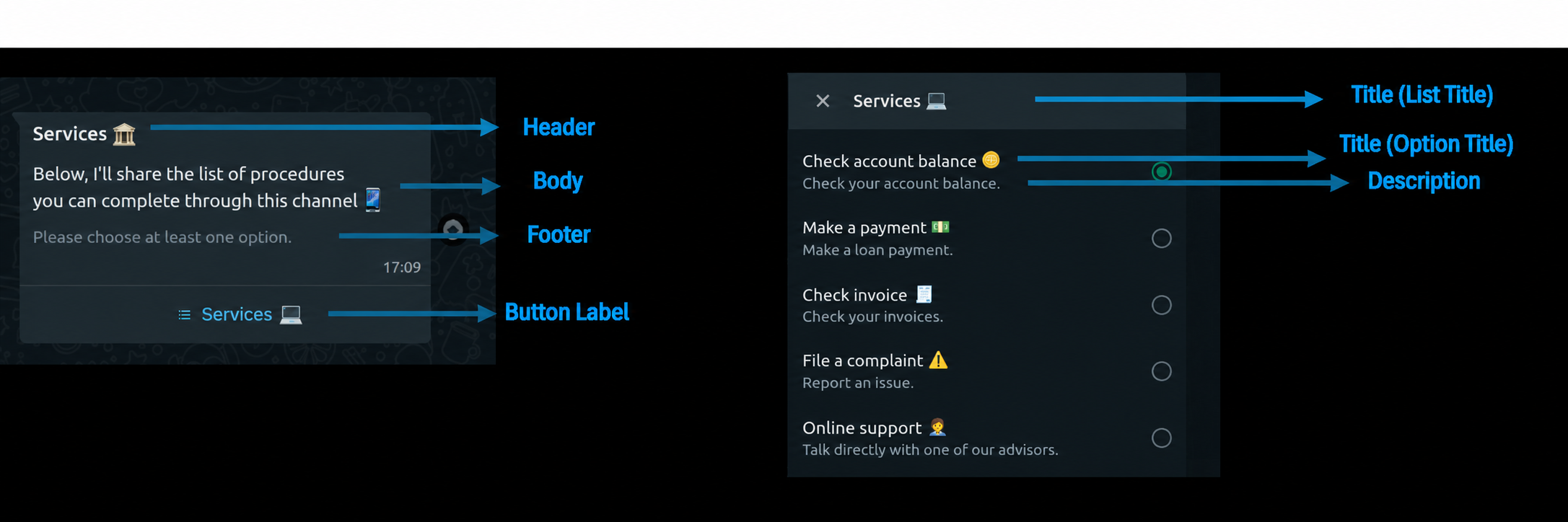
 Key Information
- If you select Type = Next Step, you must create a Step In node connected to a Step Close node so the flow can receive the user's selection and execute the integration correctly.
- The maximum number of options depends on the channel:
- WhatsApp: Up to 10 options.
- Web: Unlimited options.
 You can download an example flow from this link.
 In the following video, we'll show you how to configure the node in Studio: