Find the answer you are looking for

Discover how to link intentions using the Hyperlink Text element

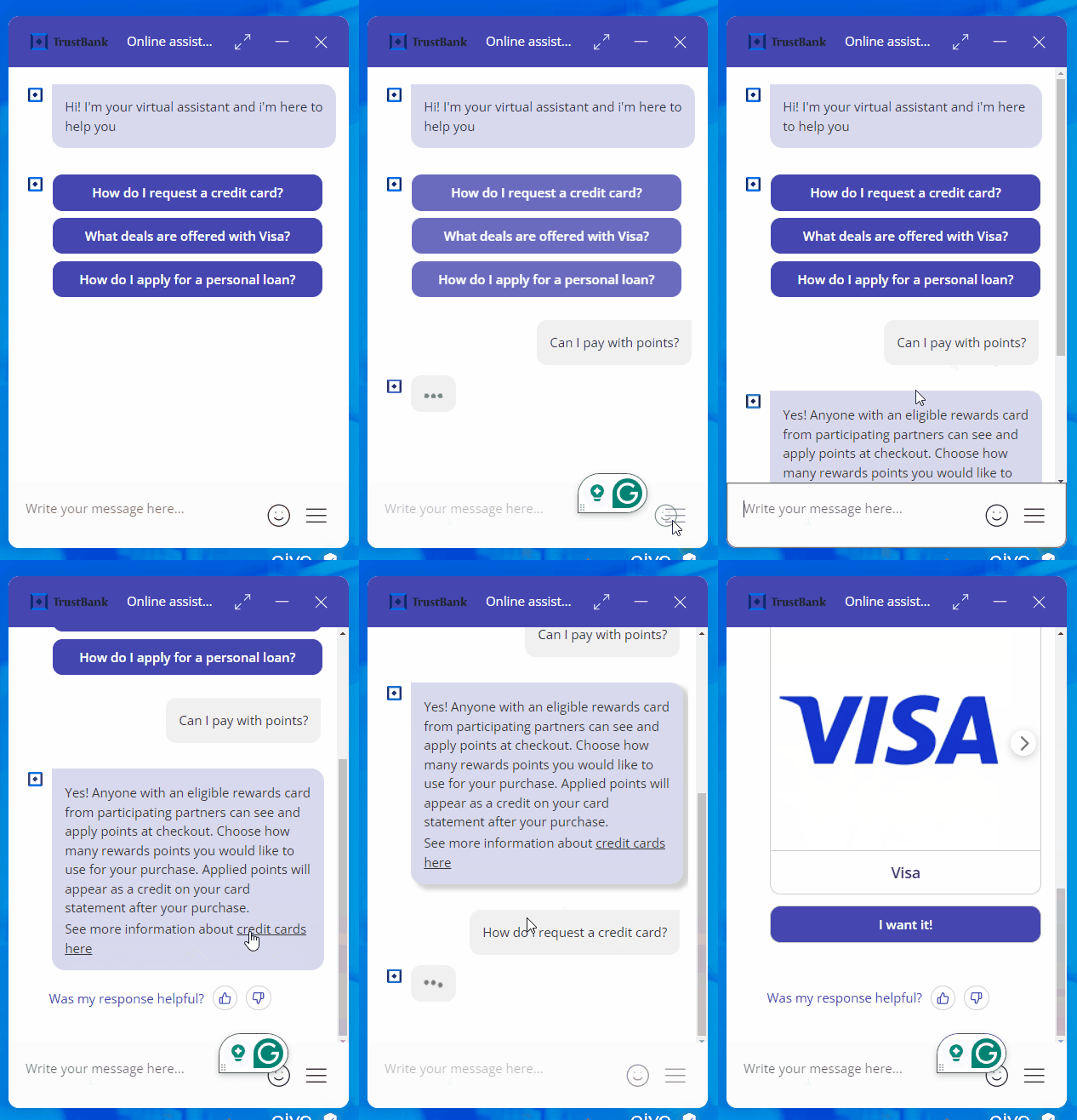
You can link an intention to another using the “hyperlink text” element from the answer editing panel, which helps improve user navigation and target content based on the specific query.
Once the association is finished, the word you defined as the title will appear highlighted as a link. If the user clicks on the word, they will receive the content configured in the linked intention as a response.
undefined

⏯ Below, we show you the steps to configure it. You can view the guide and listen to it or pause the voiceover using the button located in the upper right corner of the tour to view only the steps.
This website stores cookies on your computer. These cookies are used to collect information about how you interact with our website and allow us to remember you. We use this information in order to improve and customize your browsing experience and for analytics and metrics about our visitors both on this website and other media. To find out more about the cookies we use, see our Privacy Policy.

If you decline, your information won’t be tracked when you visit this website. A single cookie will be used in your browser to remember your preference not to be tracked.