The message "... refused connection", in responses that you have configured with the Embed Page or Webview plug-in, can appear for different reasons. Here we explain the general cases and alternative solutions.

When you set up the Embed Page or Webview plugins, you use a URL, which can be from the same domain as your site or from a different one.
The URLs of the same domain, of the site where you have hosted your virtual assistant, work correctly. For example:
- URL of our site where the chat window is located “https://www.aivo.co/”,
- Enter the URL inside the plug-in “https://www.aivo.co/conversational-ai”,
In the case of using a URL from another domain, the operation will depend on the configuration of that site.
If you are going to use a YouTube link in your Webview or Iframe plug-in, so that it displays as expected:
- First choose the link.
- Then copy and paste it into the space provided for the URL in the selected plug-in.
- Replace the underlined characters below with the word embed and place a backslash in the place of the equals.
- For example:
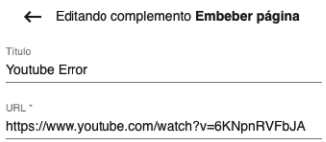
- Original link https://www.youtube.com/watch?v=6KNpnRVFbJA
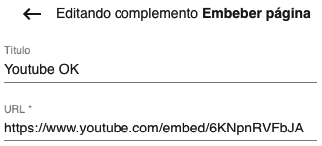
- Modified link https://www.youtube.com/embed/6KNpnRVFbJA
Copy the link as it is on YouTube, it will show the answer with error
So this would be the correct way to set up YouTube video
Setting up your own website to enable Embed: in case you need to enter a URL you own, but which is on a different domain than the site the bot is on, the main problem usually occurs because of the X-Frame-Options HTTP response header, which can be used to indicate whether a browser should be allowed to render a page in a <frame> <iframe> or <object>. The available settings are:
- DENY: the page cannot be displayed in a frame (Iframe), independent of the site that is invoking it.
- SAMEORIGIN: the page can only be displayed in a frame (Iframe), of the same origin as that page.
- ALLOW-FROM uri: the page can only be displayed in a frame (Iframe) of specified origin.
Here are some tips to solve this problem, which will depend on the characteristics of your website. You may need support from your technical team.
Apache Configuration
- Add the following to your site configuration so that Apache sends the X-Frame-Options header for all pages: Header always append X-Frame-Options SAMEORIGIN
- To have Apache send the X-Frame-Options header to allow (ALLOW-FROM) a specific host, add this to your site configuration: Header set X-Frame-Options "ALLOW-FROM Example Domain".
nginx configuration: to configure nginx to send the X-Frame-Options header , add this to the configuration, add_header X-Frame-Options SAMEORIGIN;
Inter-server synchronization (ISS) configuration: to make IIS send the X-Frame-Options header, add this to your site's Web.config file:
<system.webServer>
<httpProtocol>
<customHeaders>
<add name="X-Frame-Options" value="SAMEORIGIN" />
</customHeaders>
</httpProtocol>
</system.webServer>
HAProxy configuration: to make HAProxy send the X-Frame-Options header, add the following to your front-end, listen, or backend configuration:
rspadd X-Frame-Options:\ SAMEORIGIN
thumb_up
thumb_dow