The following types of surveys can be enabled in each channel's settings, and you can also allow users to leave additional comments if they so choose:
*Binary: Positive - Negative.
*Stars: Up to 5.
*NPS: Scale from 0 to 10.
*CSAT Scale from 1 to 5.
Keep these points in mind, and consult more details in the tab corresponding to each channel:
✓ Only one survey type is allowed per channel. Different surveys cannot be set for the same window.
✓ It is not possible to configure surveys by conditions.
✓ By default, surveys are disabled in the Channel Manager.
✓ For Web and asynchronous channels, you can include emojis in text fields during setup. These emojis will be visible to users. To use them correctly, you should refer to this list of all the emojis that are supported and recognized by the platform.
 Web Channel
1. The survey is sent after the session ends.
2. In the web channel, there is no option to configure the time when it will be sent. It will be activated when the chat window is closed or the Virtual Assistant service is finished.
3. If users write a message after the satisfaction survey has been sent, that query will be taken as a survey rating, because what is expected is a feedback response and regexes look for ratings in the text.
 For example, if someone answers the survey with 'I thought the attention was 10,' the system extracts the '10' as the feedback score. Similarly, if they send '-5,' the system considers it as '5,' since that is the valid rating found.
4. If the users do not interact with the bot, the survey will not be activated when the window is closed; only the session will be closed.
5. If you activate the open question when configuring the survey, the user can optionally send an additional comment to the feedback metric. If you do not activate it, the user can only select a score, which will be sent automatically. Finally, if configured, the Thank-you message will be displayed.
6. If the user selects a value, then changes their mind and chooses another, Analytics will record the last value assigned.
7. If the Thank-you message is active, it will be displayed after sending the survey. If it is not activated, after sending the survey, the session and the window will be automatically closed.
8. The survey will not be executed if the conversation ends with a human agent.
9. If the user ends the conversation with the human agent, and returns to interact with the Virtual Assistant, once the window is closed, the survey will be displayed.
10. If the survey is enabled for the user, and they perform any of these actions on a Web channel:
* Refresh the screen.
* Switch to a section or page on the site.
The following will occur:
a. If the session has not expired, the survey will be displayed when the window loads.
b. If the session ended, for example, after 5 minutes of inactivity, the window will open without the survey request.
Asynchronous Channels: Facebook, WhatsApp, Instagram, SMS.1. The survey must be activated before the end of the session (up to 24 hours).
2. The time it takes the system to send the survey is 5 hours from the last interaction of the client. You can modify it from the channel settings.
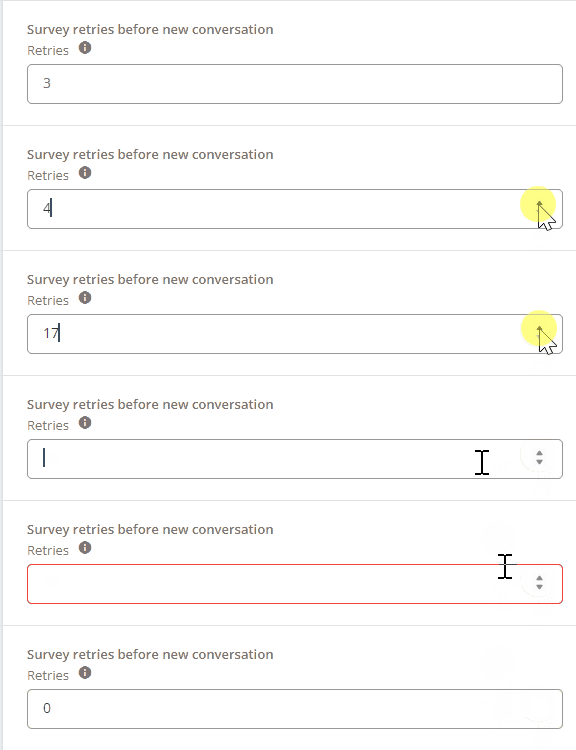
3. The survey will be sent only once per session, unless you configure the "Survey retries before a new conversation" option.
4. In Survey retries before a new conversation, you will indicate how many times the survey will be shown to the user before they can start a new conversation.
a. The field to be completed has no technical limit; however, it is mandatory to enter a number, which can be 0.
b. It is recommended not to exceed 3 attempts to avoid generating an experience perceived as spam.
5. The survey will not be displayed if the session is transferred to a human agent.
6. If the user enters invalid answers twice in a row, the session is closed, and the Thank-you message is sent.
7. If the user does not respond to the survey after 24 hours, the Thank-you message is triggered and the session is closed.
8. The open field is optional and configurable. The action of completing the open field will follow the following structure:
a. Users are asked if they want to leave a message.
b. If the answer is “No”, the Thank-you message is sent, and the session is closed.
c. If the answer is “Yes”, the message is sent: “Next, write your opinion or suggestion in a single message”.
9. The Thank-you message is a mandatory field in asynchronous channel surveys, since its function is to close the session.
 Important: Any input from the user, even if not related to feedback, will be considered a comment. A Thank-you message is sent, and the session is closed.
*If the user does not answer “Yes” or “No”, the session must be closed after 24 hours.
*If the user answers with the value, but does not complete the open field, that information is saved.
 Learn below how to configure it on the platform: