Once you implement the use of Autogenerated Knowledge in Virtual Assistant, you'll be able to view, in read-only mode and in plain text format, the content that the platform extracted and saved from:
- Site URLs
- Uploaded PDF files or files accessed via links
 The main objectives of this feature are:
- To provide a clear view of the content obtained through the scraping process directly on the platform.
- To reduce the time it takes to diagnose issues related to incorporated content.
- To allow you to quickly validate whether the scraped source is suitable or needs adjustments.
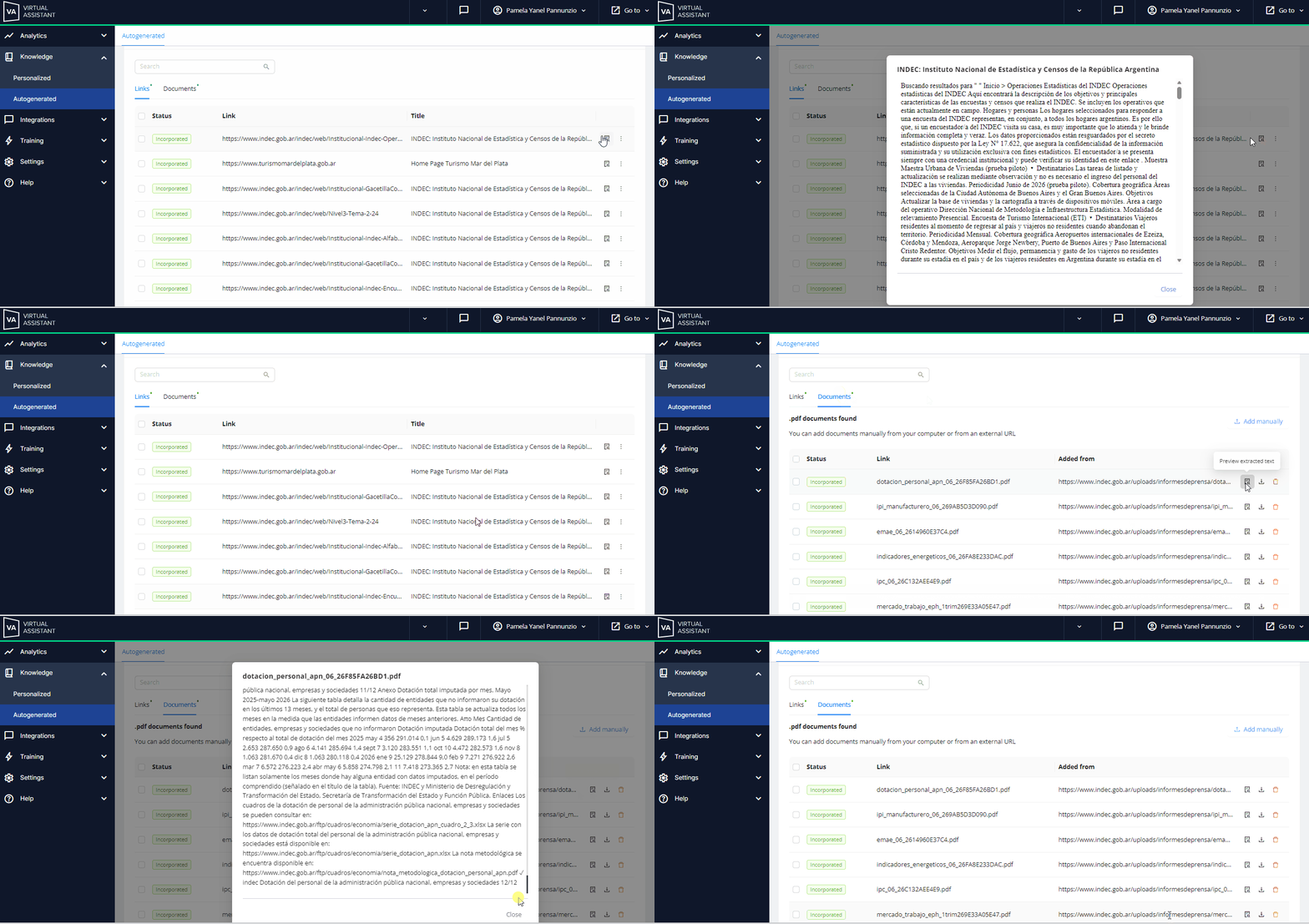
 After searching for links or documents in the “Autogenerated” section, you’ll see a list of results in each tab. At the end of each row, various action icons are displayed, including the “Preview extracted text” option.
 You can only view the content; you cannot edit it or interact with the text within the preview modal. You can only view the content; you cannot edit it or interact with the text within the preview modal.
|
- In the table, locate the row containing the link or PDF you want to review.
- Click the “Preview Extracted Text” icon.
- Clicking the icon opens a modal window that occupies approximately 80% of the screen, enabling efficient viewing of the content.
- Inside the modal, you’ll see the content as plain text (unformatted):
- No bold text.
- No styles.
- Tables may appear as text (depending on the extraction).
- To exit, click Close.
 The text obtained from links and documents will be displayed in the original language at the time of extraction. The text obtained from links and documents will be displayed in the original language at the time of extraction.
|
|
|
|
|

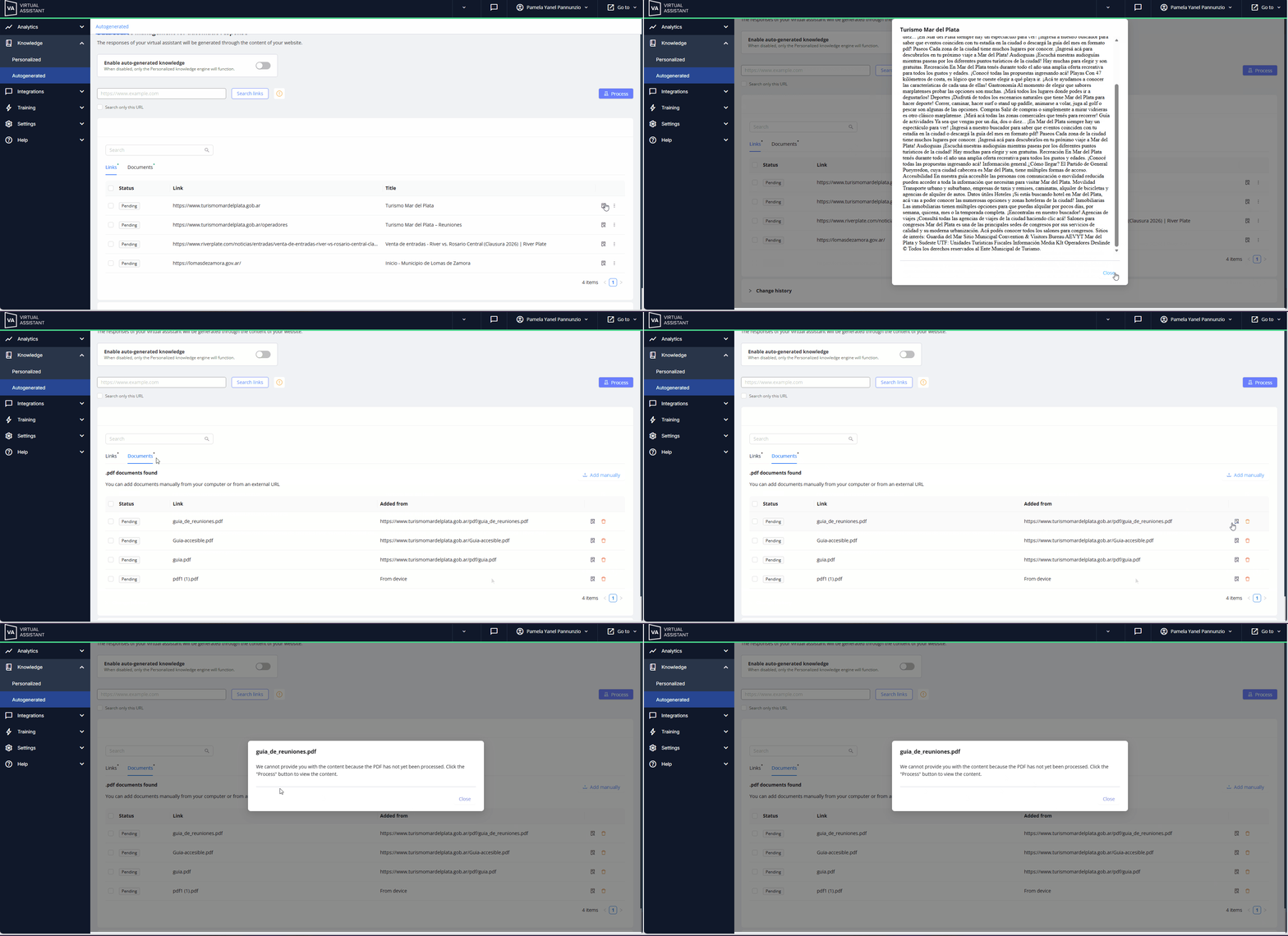
 Scraping status indicators: The preview icon is displayed based on each status, as shown in the table below.
| Status |
Description |
 Pending Pending |
The extracted content will only be visible in the items under the “Links” tab, not in documents. |
 Processing Processing |
The extracted content will not be visible in either case while it is in the “Processing” status. |
 Processed (Successful) Processed (Successful)
|
The scraping was completed successfully. The preview icon will be available. |
|
|
 Learn about each complete process at: