If you use the virtual assistant's Autogenerated Knowledge feature, you can download the extracted text for each resource by going to Knowledge > Autogenerated section.
 The main goal of this feature is to provide greater autonomy and scope for managing Autogenerated knowledge.
 The download process depends on the resource type.
☝How do you do it?
- Go to Virtual Assistant > Knowledge > Autogenerated.
- Select the Links or Documents tab, depending on the resource you want to download.
- After searching for links or documents in the Autogenerated section, you’ll see a list of the results found within each respective tab.
- Find the resource in the list. Various action icons are displayed at the end of each row.
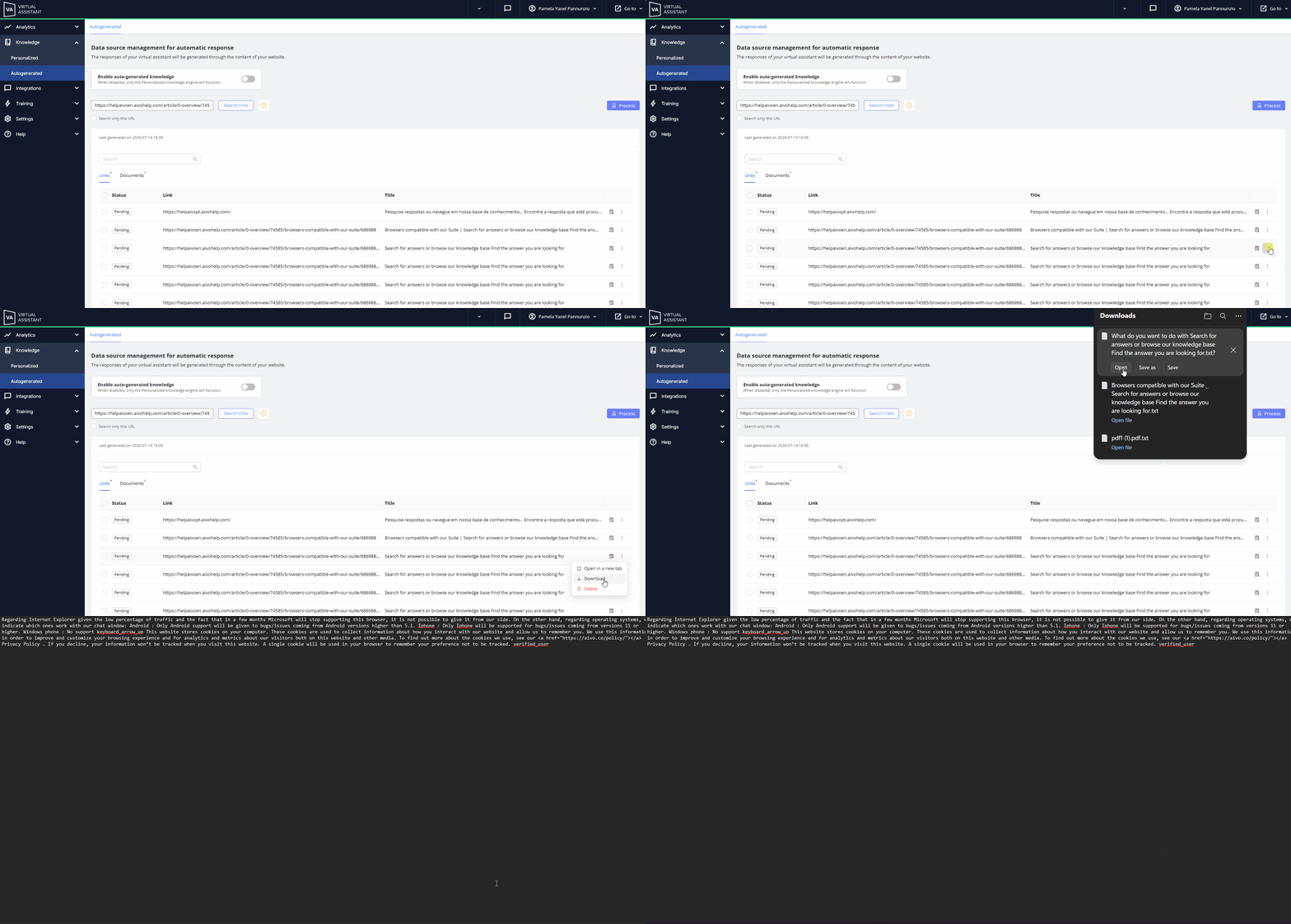
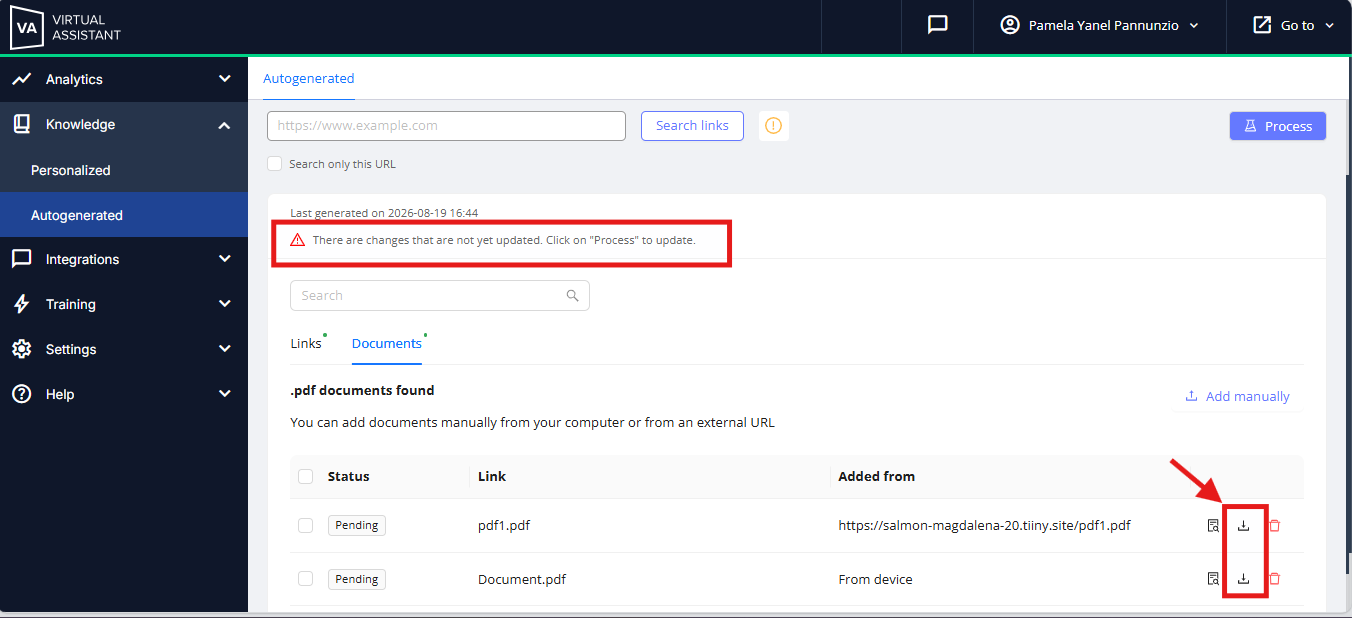
- In the corresponding row, click the Download icon or button depending on which tab you’re on.
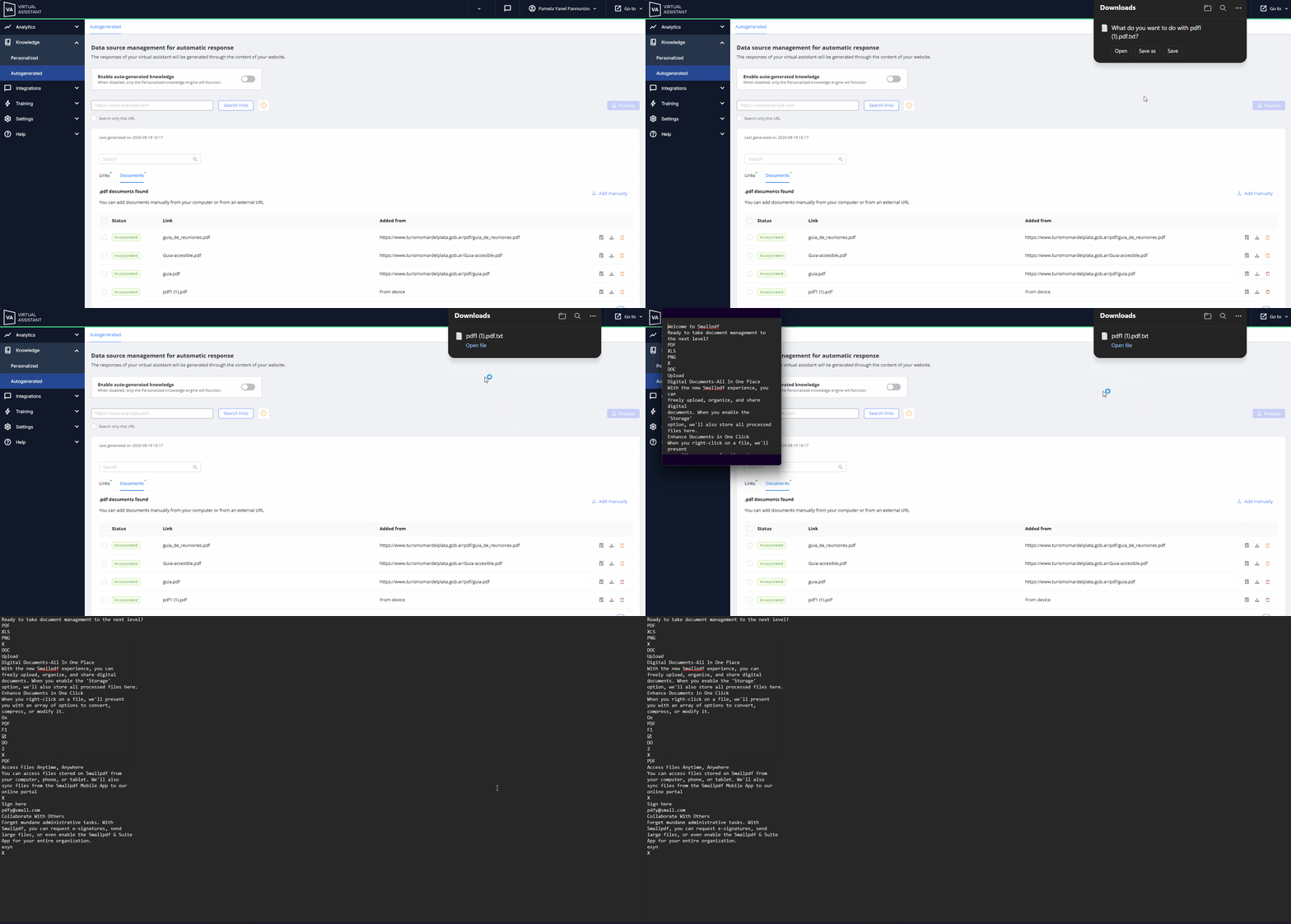
- When you click it, a .txt file will be downloaded.
 What content will you find?
- A .txt file will be downloaded containing the text extracted from the URL during the scraping process.
- The content is presented in plain text, so it may not retain:
- Bold text.
- Styles or visual formatting.
- The structure of the tables can be displayed as text based on the extraction results.
 Key points:
• The download is performed on a per-resource basis. It is not possible to download multiple links or documents in bulk.
• Downloading does not modify, reprocess, or update the content of the link or document.
• The text obtained from links and documents will be displayed in the resource’s original language.
• In the Links tab, you’ll find a drop-down menu containing the “Download Extracted Text” option.
• For links, you’ll see the download option as soon as the search is complete. That is, before processing begins.
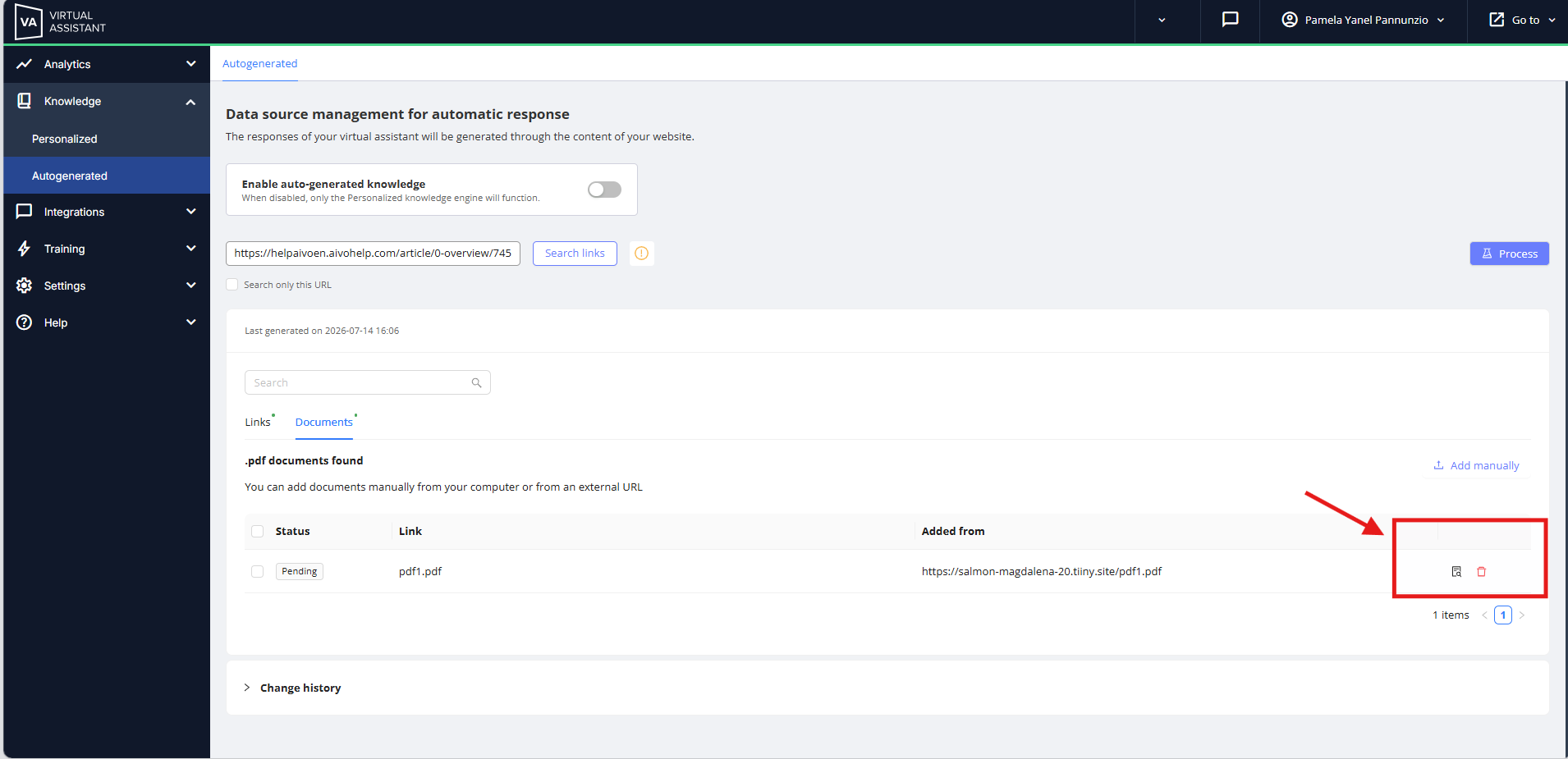
• For PDFs, however, you’ll only see the action icon after clicking the “Process” button.
• Before that, it won’t be available.
• Unless you process new links or documents. In that case, you will see the icon on the Documents tab, but it will show the last uploaded version prior to the new information being processed.
|
|
 Learn more in the following articles: