
 Change a button’s intention
- Go to Engage and select Templates.
- Find the template you want to edit. Under Preview, select the eye icon to preview it. If the template contains buttons, you will also see a pencil icon to edit the associated intention.
- Select the pencil icon. The text box for each button shows its current setting. Replace it with the intention you want the button to route to, then select Accept.
- If the template is a carousel, use the dropdown for each card to view and edit its buttons.
- To restore the original setting, select Restore default at the bottom of the box, then select Accept.
- After saving your changes, an on-screen notification will confirm the update.

 Edit buttons when creating a campaign
If you select a template with customized buttons when creating a One-Time WhatsApp campaign, you can edit the buttons again for that campaign. On the campaign creation screen, select “here” to open the editor and make your changes.
 This option is not available while creating Recurrent WhatsApp campaigns. To change the buttons in this case, edit them in the Templates section before creating the campaign.
 Use the intention ID instead of the text
If you need to use the intention ID instead of its text to achieve an exact match, overwrite the intention text (payload) of a Quick Reply button using this format:
- First, you must enter the text “groupId” followed by a colon
 groupId:
- Add the intention ID For example: 4642162.
- Next, add two colons ::
- End with any text, since the field cannot be left empty For example: ofu4oficialdenegocios.
groupId:4642162::ofu4oficialdenegocios Key Points
• Available only to virtual assistants that use the new conversational engine.
• The text after :: is required.
• Although this text serves no purpose in this use case, we recommend always using the intention’s name to facilitate traceability and future edits.
• Do not type the symbols that appear in the placeholders (/) literally; use the colon as specified in the format.
• All characters included must be typed without spaces.
 This works the same way as the Intent Trigger button type.
• When clicked, the button directly triggers the linked intention, bypassing the NLU* engine.
• There is no text interpretation involved: the bot goes straight to the response configured for that specific intention.
*NLU: Natural Language Understanding
 How to find an intention ID
- Open the Virtual Assistant platform. You must have login credentials and the Knowledge permission enabled.
- Go to the Personalized section.
- Open the intention whose ID you need.
- Once inside the intention, look at the address bar. Immediately after the link to the Virtual Assistant platform, you will see a series of digits. Those digits are the intention ID.
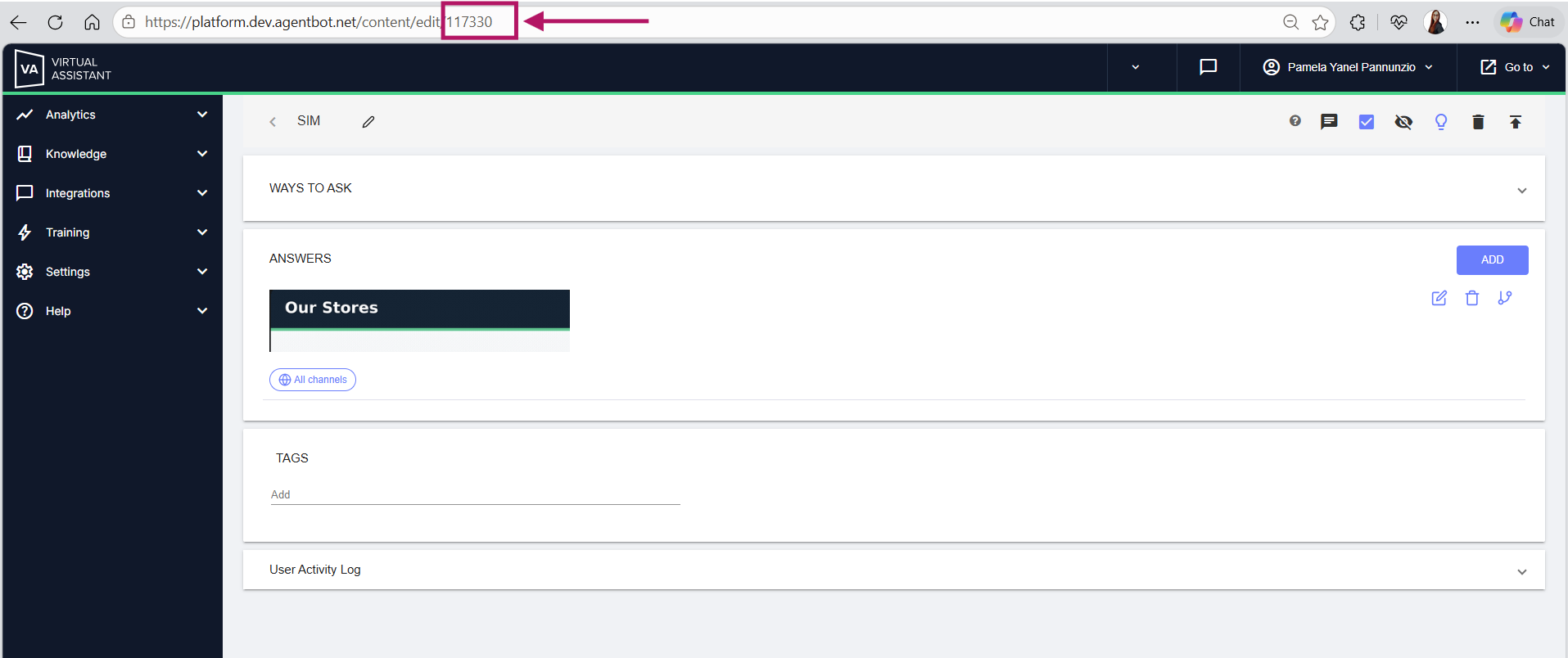

 See each step in the tour below.