 Survey types are configured in the settings for each channel. Choose one of the following options. You can also enable users to leave an additional comment:
- Binary: positive or negative.
- Stars: up to 5.
- NPS: from 0 to 10.
- CSAT: from 1 to 5.
 General considerations
- Only one survey type is supported per channel; different survey types cannot be used in the same chat window.
- Surveys cannot be configured based on conditions.
- In Channel Manager, the survey is disabled by default.
- In the Web channel and asynchronous channels, you can add emojis to the text fields during setup. Users will see those emojis. Refer to the list of compatible emojis recognized by the platform.

 How it works by channel
 Web channel
 Activation and delivery
- The survey is sent when the session ends.
- By default, you cannot configure when the survey is sent: it is triggered when the chat window closes, after the Virtual Assistant interaction ends.
- If you need to trigger the survey based on user inactivity, see Triggering a satisfaction survey after a period of inactivity in the Web channel. To enable this feature, submit a Service Request.
- If the user has not interacted with the bot, the survey will not be triggered when the window closes; only the session will end.
Responses and comments- If you enable the open-ended question, the user can leave an additional comment with their rating. If it is disabled, the user can select a rating, which is submitted automatically.
- The user can change their rating before finishing. In Analytics, the last option selected is counted.
- After the survey is sent, the user's messages may be interpreted as a rating because the system looks for supported values in the text.
For example, “I thought the service was a 10” or “I thought the service was a ten” may be recorded as 10. If the user sends “-5,” it is treated as 5 because that is the valid value detected in the input. Special casesa. The survey is not triggered if the conversation ends with a human agent.
b. If the user ends the conversation with the human agent and then interacts with the Virtual Assistant again, the survey will appear when the chat window is closed.
c. If the survey has been triggered, and the user refreshes the screen or changes sections or pages on the website:
- If the session has not expired, the survey will appear when the chat window loads.
- If the session has ended—for example, after 5 minutes of inactivity—the window will open without the survey request.
Ending the session- If a thank-you message is configured, it will appear after the survey is submitted.
- If no thank-you message is configured, the session and chat window will close automatically after the survey is submitted.
 Asynchronous channels: Facebook, WhatsApp, Instagram, and SMS Activation and delivery
- The survey must be activated before the session ends (within 24 hours).
- The system sends it 5 hours after the customer's last interaction. You can change this time in the channel settings.
- The survey is sent only once per session unless you configure Survey retries before a new conversation.
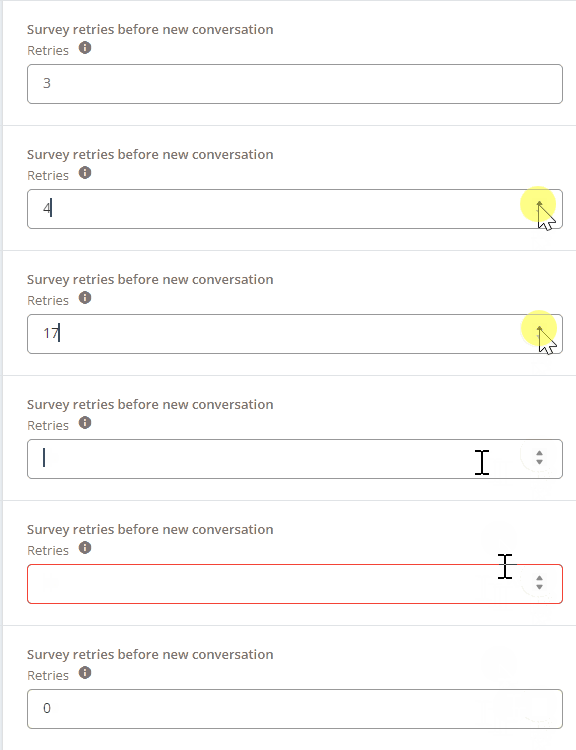
Responses, comments, and retries- In Survey retries before a new conversation, specify how many times the survey will be shown before the user can start a new conversation.
- This field requires a number and accepts 0. There is no technical limit, but we recommend no more than 3 attempts to avoid an experience that feels like spam.
3. The open feedback field is optional. If it is enabled:
- The user is asked whether they want to leave a message.
- If the user answers “No,” the thank-you message is sent, and the session closes.
- If the user answers “Yes,” they are asked to write their opinion or suggestion in a single message.
- Anything the user enters in this field is treated as a comment, even if it is unrelated to the survey.
- If the user submits a rating but doesn't complete the open-ended field, the system saves that information.
Special cases and ending the sessiona. The survey is not triggered if the session is transferred to a human agent.
b. If the user submits two invalid responses in a row, the session closes, and the thank-you message is sent.
c. If the user does not respond to the survey within 24 hours, the thank-you message is sent, and the session closes.
d. If the user does not answer “Yes” or “No” when asked whether they want to leave a comment, the session closes after 24 hours.
e. A Greeting message at the end of the survey is required for asynchronous-channel surveys because it closes the session.

 See how to configure it: Below, you will find a demo showing the survey configuration in the platform and examples.