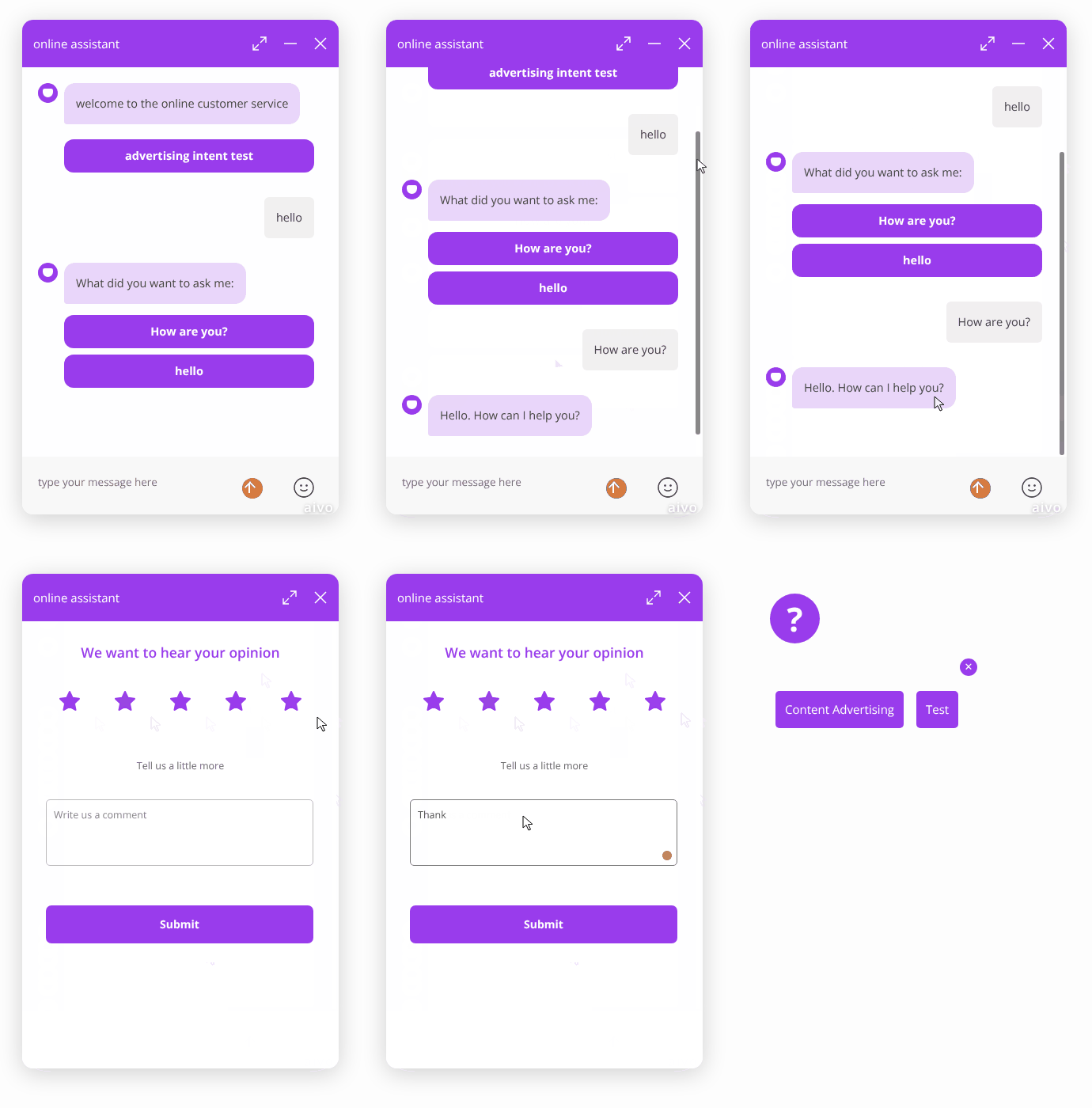
This feature automatically triggers a satisfaction survey in a web chat conversation when the user is inactive.
 In other words, if a user is chatting with the virtual assistant and stops responding for the amount of time defined in the channel settings, the system will send the survey instead of keeping the conversation open without interaction.
 This allows you to:
• Collect user feedback even when the conversation has been “abandoned” or is inactive.
• Avoid relying solely on the user manually closing the chat window for the survey to be activated.
• Ensure a higher response rate by capturing the user's opinion at the moment they stop interacting.
 This setting applies exclusively to conversations in the Web channel. To enable it, you must submit a request through the Service Request.
 Learn about the general configuration settings and the steps to enable the satisfaction survey here.
 Once it has been enabled, in addition to the key settings for enabling the satisfaction survey, you will configure:
 Time when the survey will be triggered: here, you will define how many minutes the user must remain inactive before the survey is triggered.
 Important: Important:
|
 See below for a complete example of how the configuration appears in the Virtual Assistant platform:
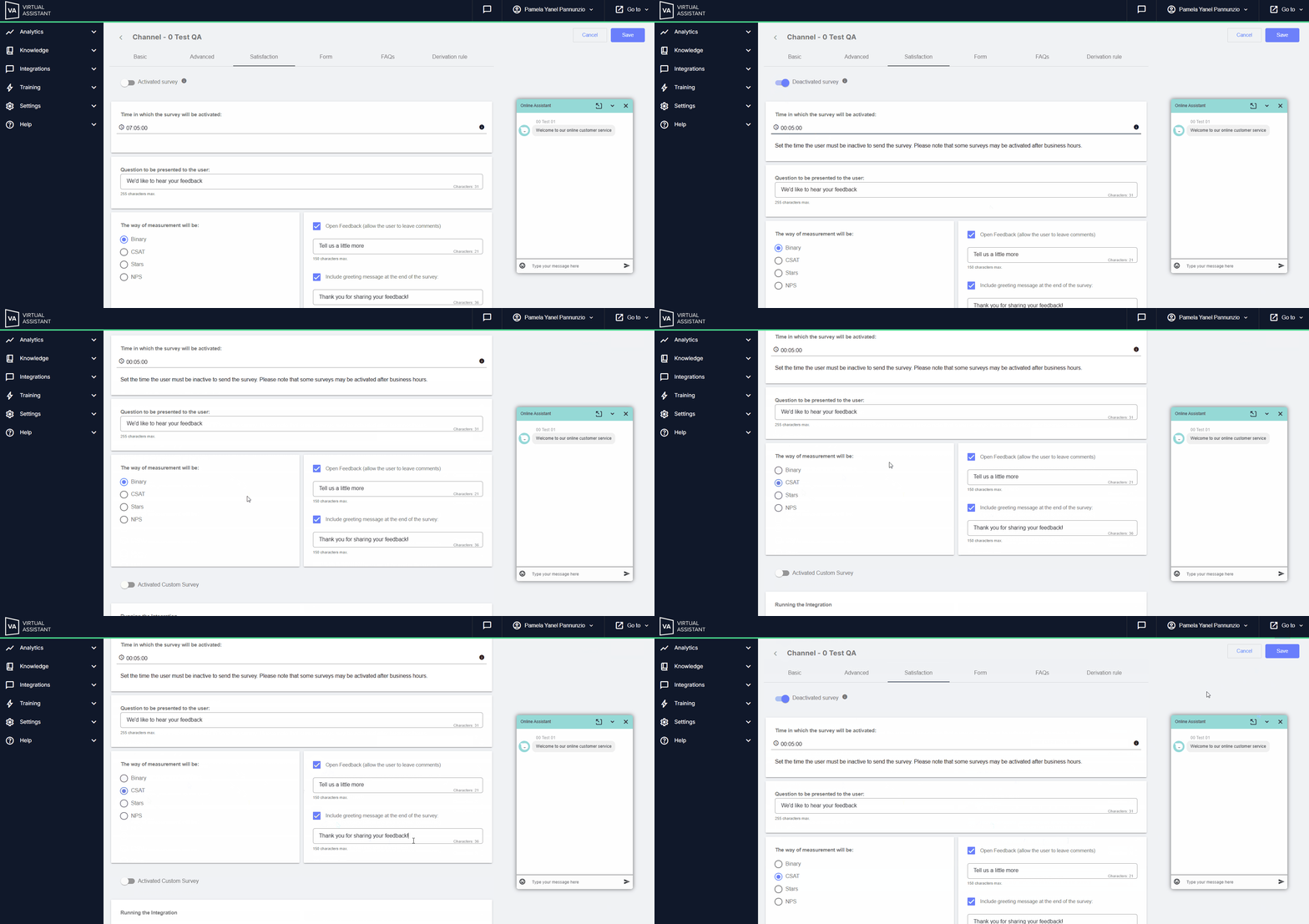
 This is how the conversational flow will work once the option has been enabled and configured:
|
1. The user starts a conversation in the web chat. |
→ |
2. The user stops typing or interacting; an inactivity timer starts (not visible to the user). |
→ |
3. Once the configured time is reached, the “X” minutes, the system triggers the defined survey. |
→ |
4. The survey is displayed to the user within the same conversation window in the Web channel. |