 There are three types of triggers.
 Automatic queue closure due to timeout:
 This is a general Live feature that can be configured per bot. In other words, it applies to all channels. It is created automatically and is disabled by default.
It triggers when a conversation that was transferred to a human agent exceeds the maximum configured time for remaining on hold without receiving a response.
It allows you to:
- Send up to three automated messages, with interactive buttons, before permanently closing the conversation.
- Detect and remove users who are no longer active, without affecting the position of those who are still waiting.
- Automatically close conversations that were transferred to a queue and not handled.
- Notify the user that the chat was closed due to inactivity.
- Log the closure of the conversation for auditing and traceability purposes.
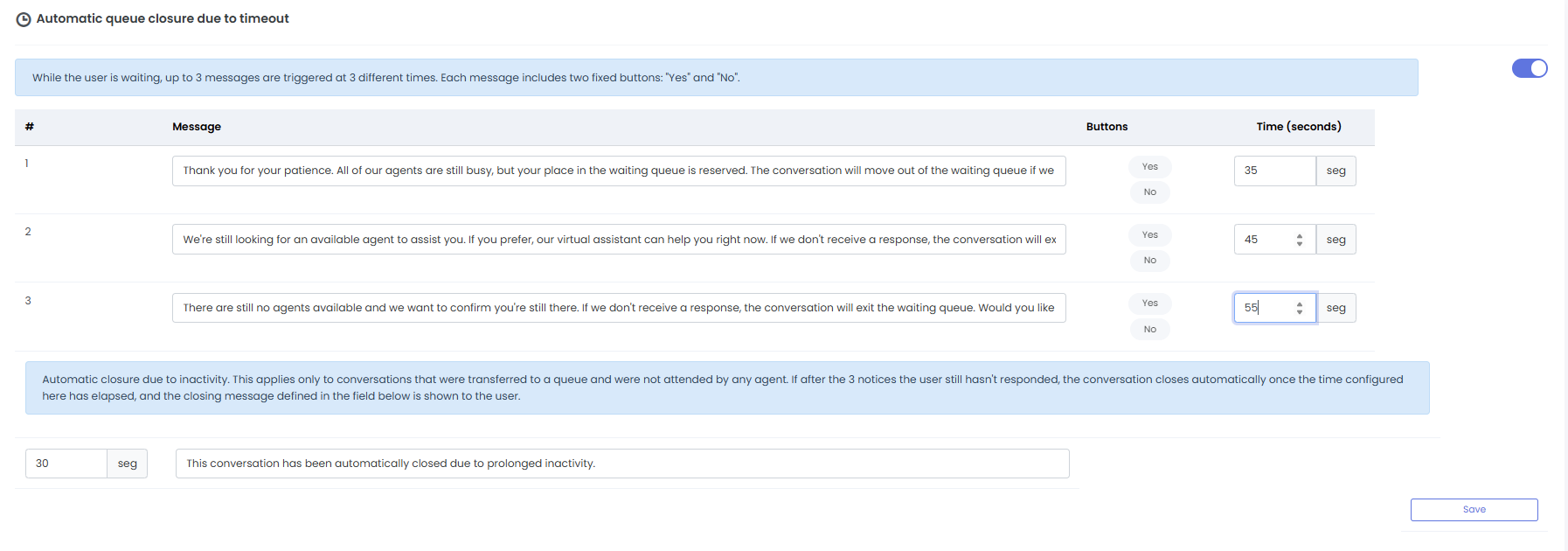
 Please note that the time you set must always be 0 or 30 seconds or more.
 The following triggers are configured specifically for each channel.
 Close due to agent inactivity:
This is triggered when a customer sends a message and the agent does not respond within the configured time. Depending on the settings, the conversation is either transferred to another agent or automatically closed.
The time is counted from the last message sent by the customer. It is recommended to set this time longer than the customer inactivity trigger to prevent the two from overlapping.
If automatic transfer is enabled:
- The conversation is sent back to the same group to which it was originally transferred.
- The status of the agent who stopped responding automatically changes to “on break.”
- The conversation is not reassigned to the same agent.


 Inactive client warning:
This is triggered when the customer stops responding. It sends a series of automated messages to verify whether the customer is still in the conversation.
If the customer still does not respond after the configured alerts have been sent, the conversation is automatically closed, and the customer is notified of the closure.


 Key Details:
 Permissions: The Agent Supervisor, Supervisor, and Administrator roles have permission to apply this feature.
 Channels and Scope
- You can create triggers for all channels that route conversations to Live.
- Triggers cannot be duplicated.
- When a trigger is configurable by channel, it must be configured independently for each type and channel: Inactive client warning and Close due to agent inactivity.
 Time and Message Settings: Once you’ve created the trigger, you must configure:
- The time at which it will execute (trigger).
- The message that will be displayed to the user, when applicable.
- The actions that will be executed.
 The execution time is set in seconds and can be edited as many times as necessary.
- The time determines how long it takes for the trigger to be sent.
- Actions are ordered sequentially—Action 1, Action 2, and Action 3—regardless of the time set for each one.
- The time for each action is cumulative. Message 1 at 60s, Message 2 at 60s after Message 1 is sent, Message 3 at 61s after Message 2 is sent = Total elapsed time of 181s.
Example of cumulative times: Times are counted from the event that triggers the trigger or from the sending of the previous action, as applicable: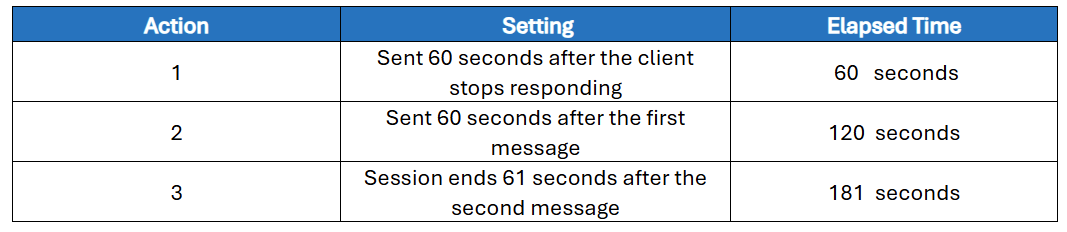


 Special considerations
- If the conversation ends, the user receives a notification informing them that the interaction with the agent has ended and that they can continue talking to the virtual assistant.
- Each trigger can be enabled or disabled as needed.
- During an ongoing video call, inactivity notifications remain disabled.
 Why is it important to configure triggers? Triggers help to:
1. Keep the user informed while they wait and notify them when inactivity is detected, before closing the conversation.
2. Reactivate conversations when the customer stops responding.
3. Streamline the response process, since messages are sent automatically and the agent doesn’t need to type to check if the user is still available.
4. Automate the conversation flow and display the sequence of actions taken in the chat window.
5. Detect conversations with no interaction from either the customer or the agent.
6. Reduce the time spent on inactive sessions.
7. Free up slots so agents can handle new conversations, in accordance with the simultaneous service limit assigned to each agent.
8. Shorten wait times for new users.
9. Optimize the service process and improve the customer experience by avoiding the frustration that can result from a session being closed without prior notice.
10. Ensure transparency in the process and provide support to the user throughout.
11. Log closed cases to facilitate traceability.
 In the tour below, you’ll learn how to create, configure, and enable or disable triggers.
You can follow the guide in visual and audio formats. You can also pause the narration whenever you need to using the button located in the upper-right corner of the tour.