The process is automatic, helping you not to copy the intentions one by one, but to load them directly into your knowledge section.
If you decide to import the content you have in Zendesk Guide, keep in mind that it is compatible with Zendesk and Zopim accounts, but the integration will not be possible if you have Zendesk Sandbox, due to the limitations of this type of product. At the same time, IP restrictions in Zendesk may cause blockages for the import of content, so we suggest you review them.
 The steps to follow are:
1. Access the integrations section of the My Aivo platform and enter your Zendesk account credentials, in the Zendesk Guide and Support option, to connect this tool. If you have already configured the integration with Zendesk Support, you will not need to perform this step.
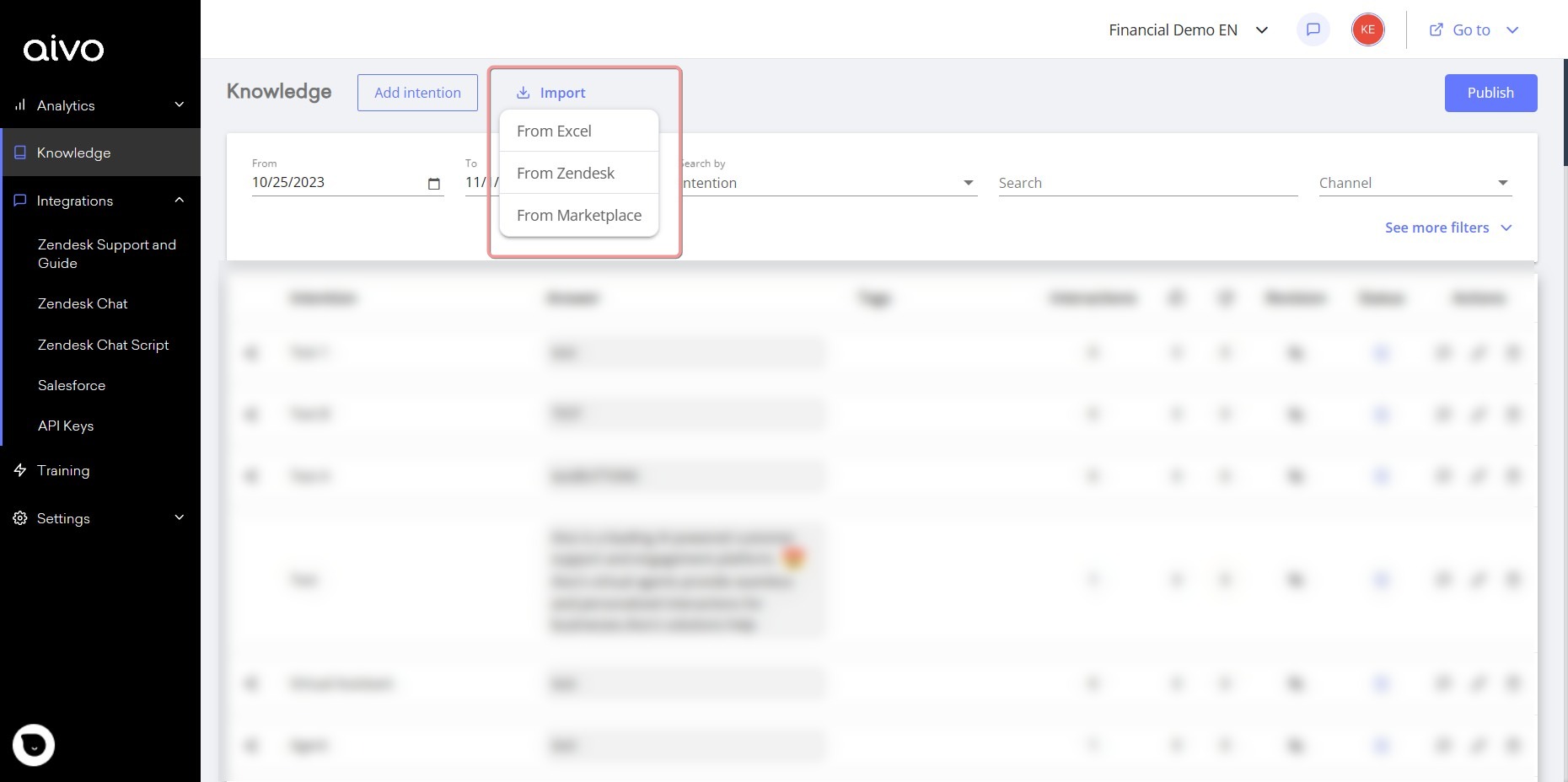
2. Once both platforms are connected, you will be able to import your content base in the import option of the knowledge section, by clicking on Zendesk.
In the end, the titles of your articles will become new intentions and the content of these will be the answers. Then, in the platform you will be able to manage your content in the same way as you do with the rest of your base, adding tags, ways of asking questions, as well as complements that you wish to incorporate.
Important:
a. It is not possible to cancel the import process once it has started.
b. If you add new knowledge to Zendesk Guide, you will have to import it again, because the Aivo platform and Zendesk Guide are not synchronized.
c. If you have already imported your content once and added more articles in the Zendesk Guide, you can import it again and it will copy only the new articles.
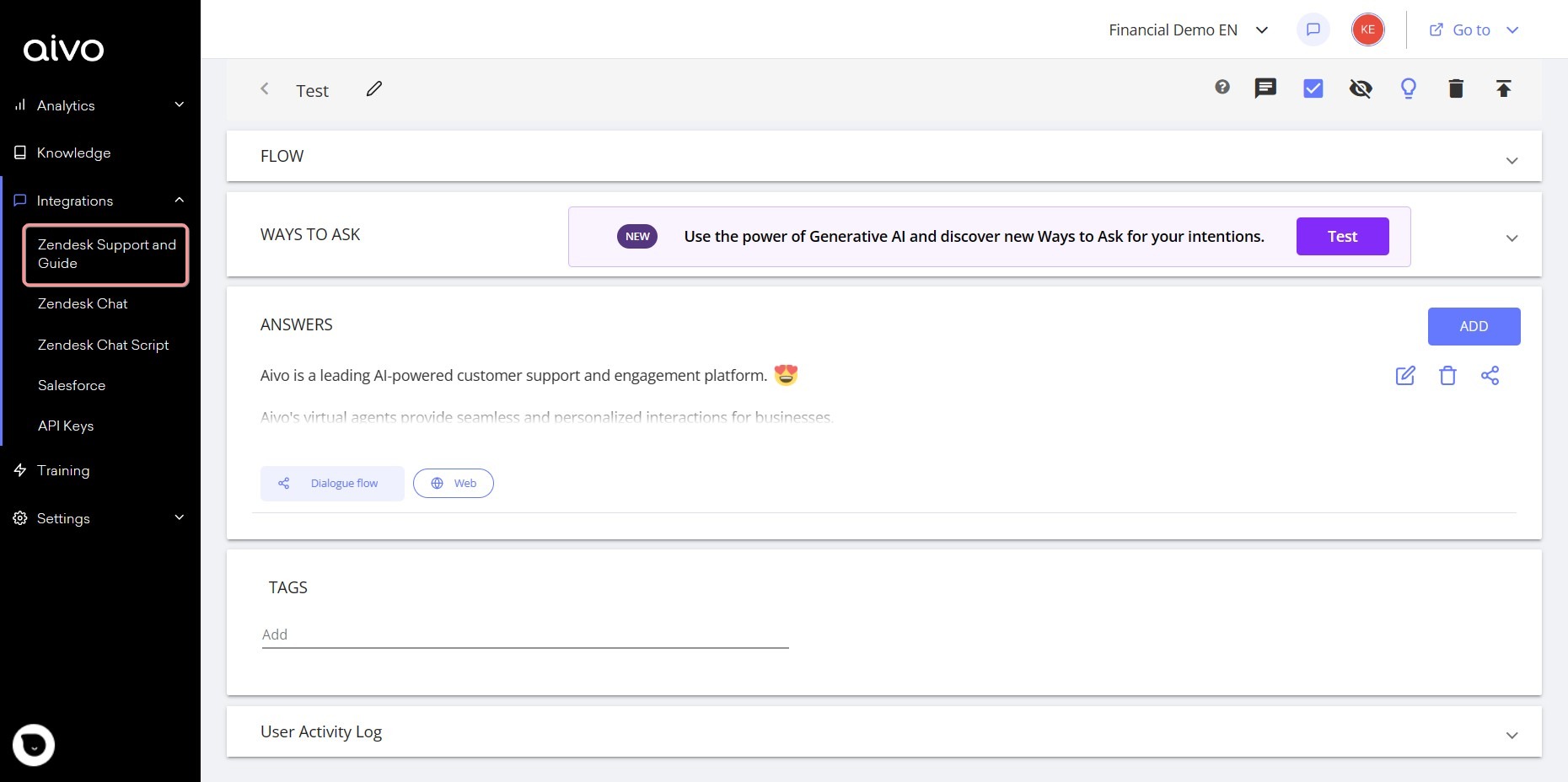
1. Access the integrations section in My Aivo and enter the data in Zendesk Support and Guide.