1. Within the My Aivo platform, click on the "Settings" section in the left panel of the screen and choose the "Transfers" option. Find out how to edit a transfer here.
a. Select the one transferred that matches the "Derivation Name" that you created and need to configure.
b. Complete the corresponding messages and specify the days and times of connection.
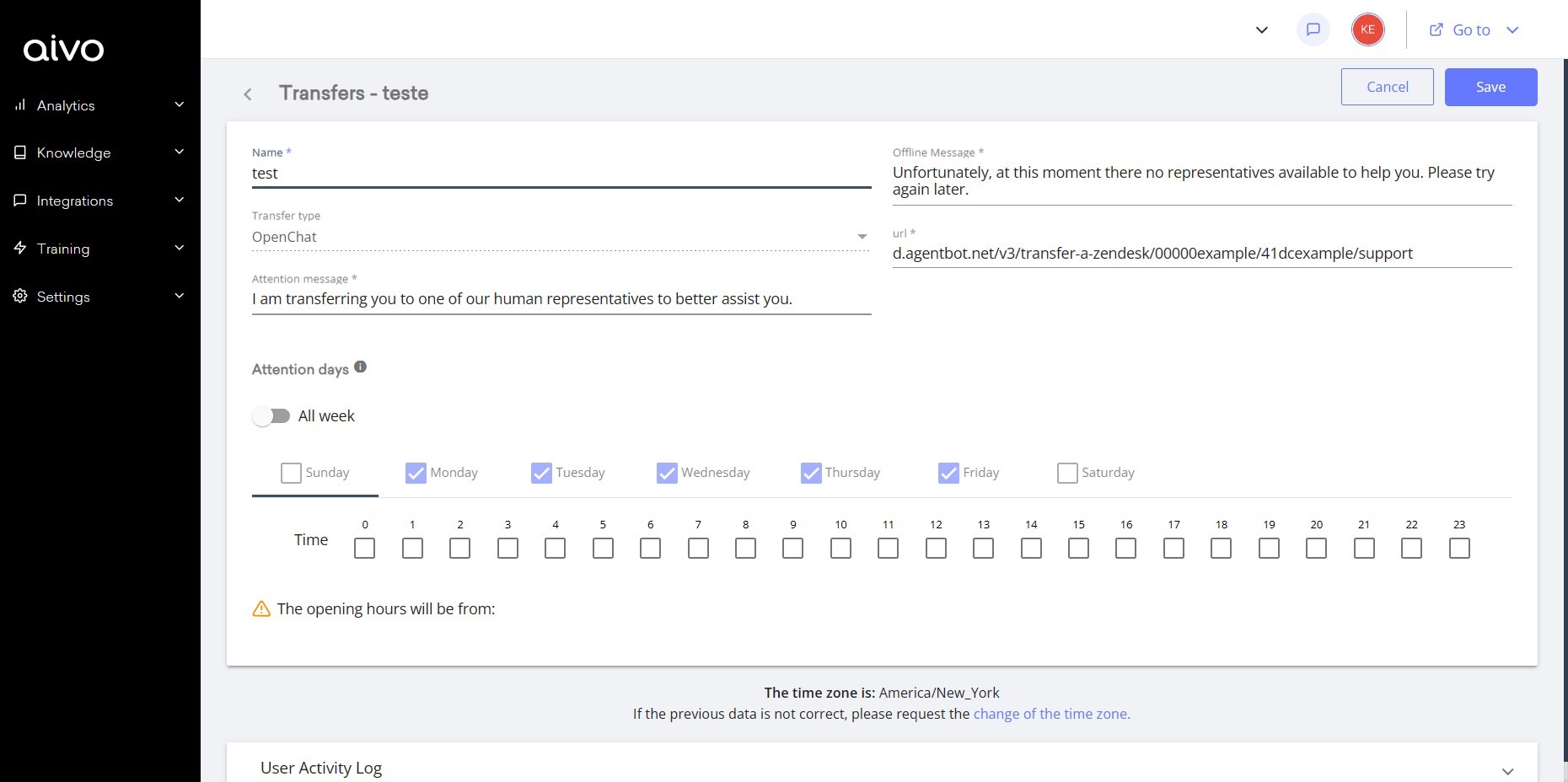
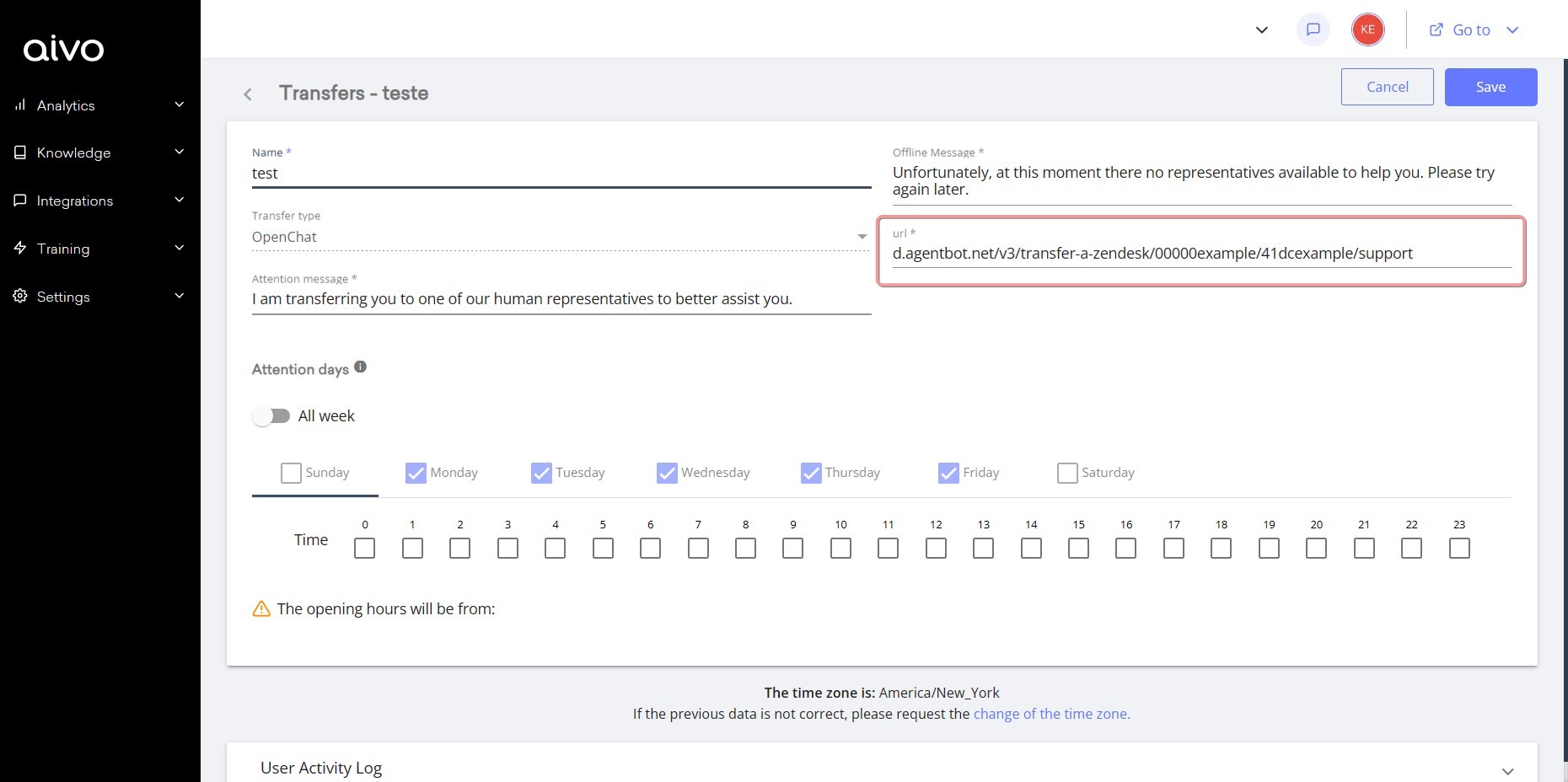
c. If you have a specific department or group to which you are going to refer, configure it, inside the URL field with this format https://zd.agentbot.net/v3/name/WebChannel/, adding at the end the required department.
*If the department name has spaces, replace each space with two (2) underscores. For example: https://zd.agentbot.net/v1/derivacao-zendesk/cliente/envio__de__ordenes?tags=[tag1,tag2,tagm]
Important: the department names must be exactly the same as in Zendesk.
In turn, to configure the different opening hours by department within Zendesk, read the following article in its help center to learn how to do it.
2. Define if you will refer by default based on the behavior of the virtual assistant (the conversation is transferred after receiving 2 evasive, 2 negative feedbacks or 2 equal answers), or if you will configure answers in particular intentions to be referred.
In both cases, we understand that the Assistant is not interpreting correctly what the user is asking for, and that is why we transfer the user to an agent, to give him/her a personalized attention
Important: the chat widget must always be enabled in Zendesk.
3. If you decide to refer by answer, click on the "Knowledge" section in the left panel of the screen.
a. Create the intent to refer to Zendesk.
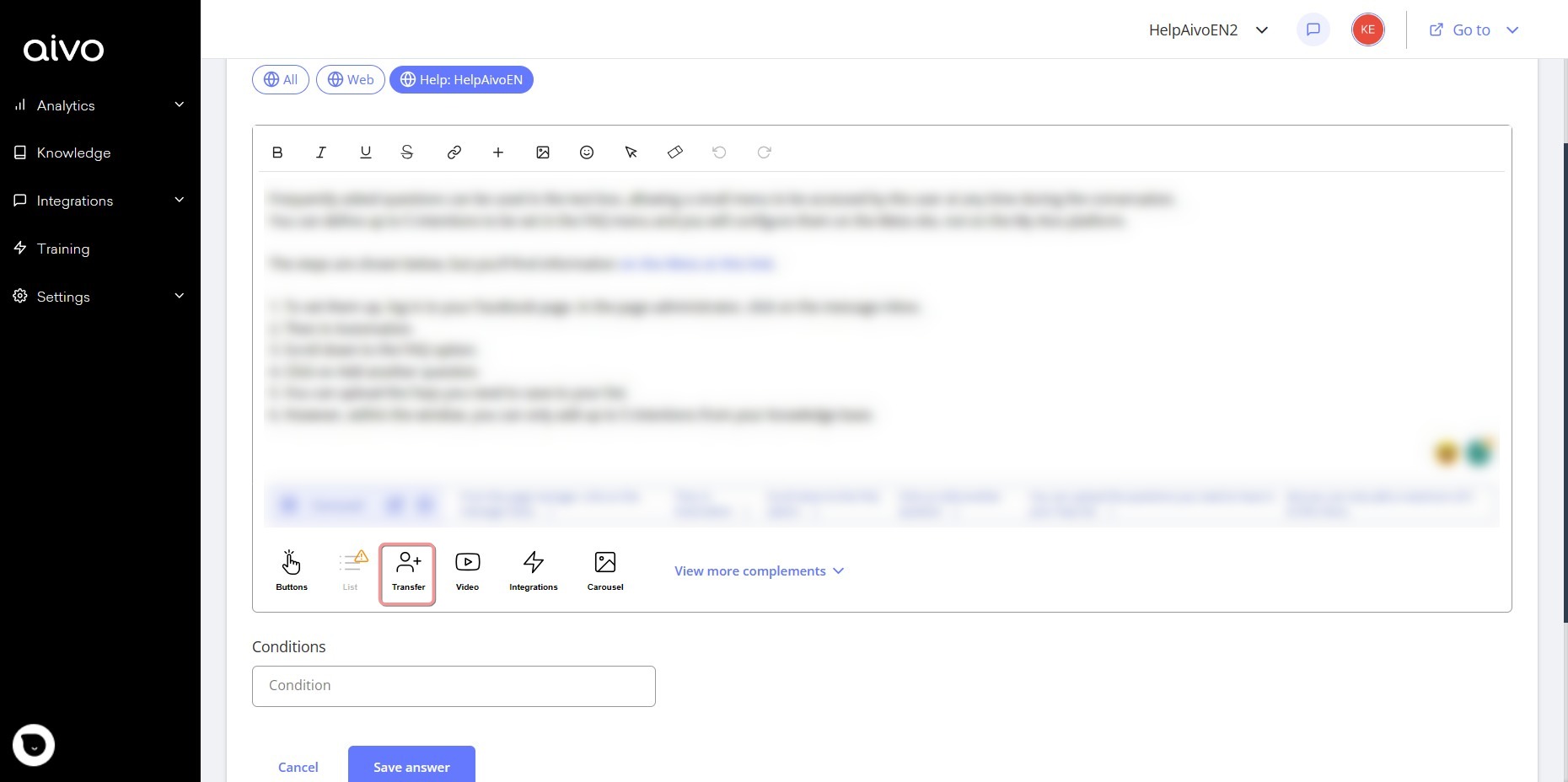
b. In the answer, select the Derivation add-in, to add the Derivation you created previously.
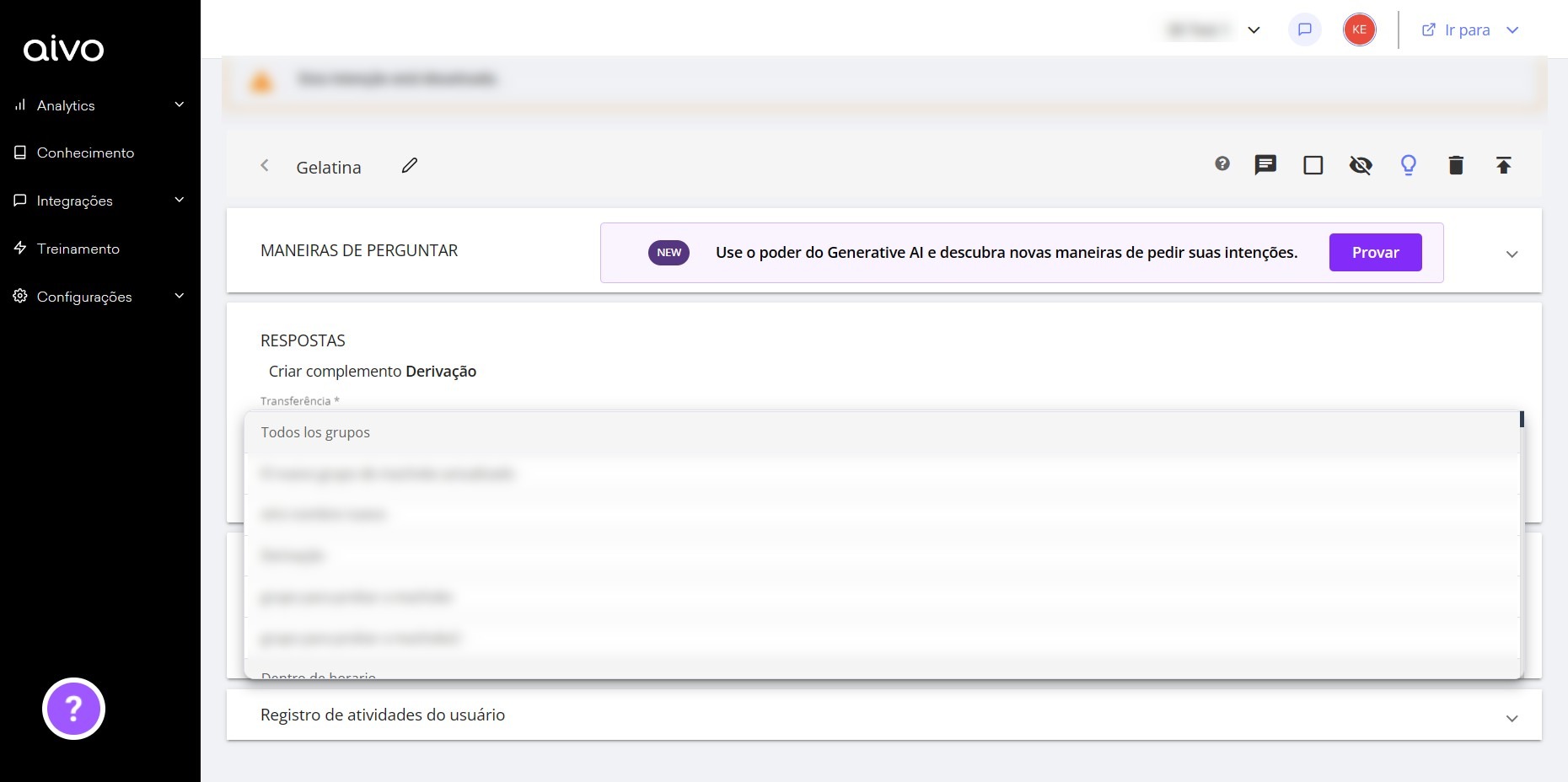
c. Open the dropdown and select the corresponding one. When it opens it will show as many options as the number of support channels you have in Zendesk Chat, for example: sales, claims, technical support, etc. Select the support group to which you want to refer the conversation.
d. Save and publish.
Done! The intent to refer to Zendesk is now configured. When a user asks the question you defined, they will be referred directly to your Zendesk Chat service.
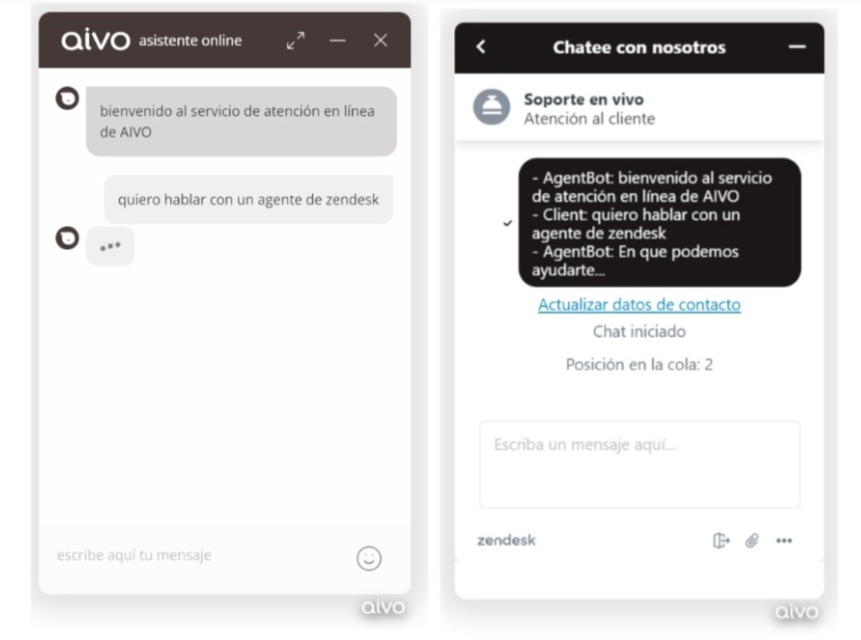
Important: if you include a pre-referral form, it must be in callback format, as Zendesk only takes plain text. This will allow the Zendesk agent to see the form data in the chat history.