In Virtual Assistant, when configuring the Buttons complement in the response editor, you’ll find the “Intent Trigger” button type option.
“Intent Trigger” buttons allow a button to directly trigger a specific intention in the virtual assistant.
☝ This feature will be especially useful for those who design, configure, or manage content and conversational flows, as well as for Support, Customer Success, and Marketing teams that need to adjust button behavior in WhatsApp templates. It will allow you to more directly define which intent should be executed when a button is selected, making it easier to configure and manage these scenarios.
 Available only for the new conversational engine Available only for the new conversational engine
|
 To implement this, in the “Buttons” complement of your response, configure the following:
► Button text: This is the first field, where you’ll enter the text the user will see when the button is displayed.
 Key point: If you want to use emojis on the buttons, be sure to check the list of all emojis that are compatible with and recognized by the platform, as well as how to add emojis to the buttons.
► In the “Button type” field, select: Intent Trigger
► And below, under “Target Intent”: You must enter the intention that will be displayed to your user when they click this button.
• The text of the intent must be entered exactly as it appears in your Personalized Knowledge Base for it to work correctly. 
• As you type, exact matches from your knowledge base will be displayed so you can select one.
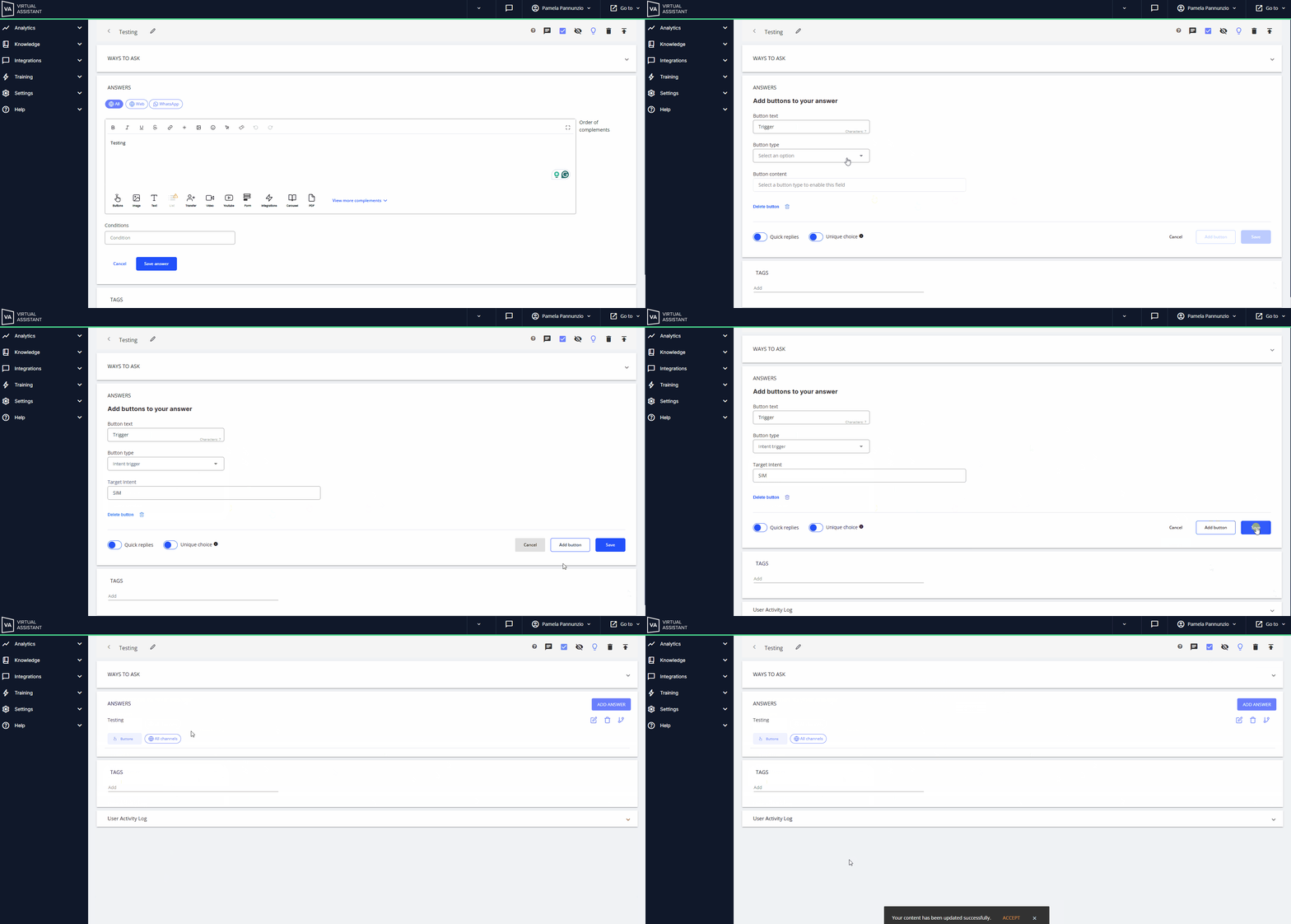
• Once the setup is complete, the button is linked to the intention.
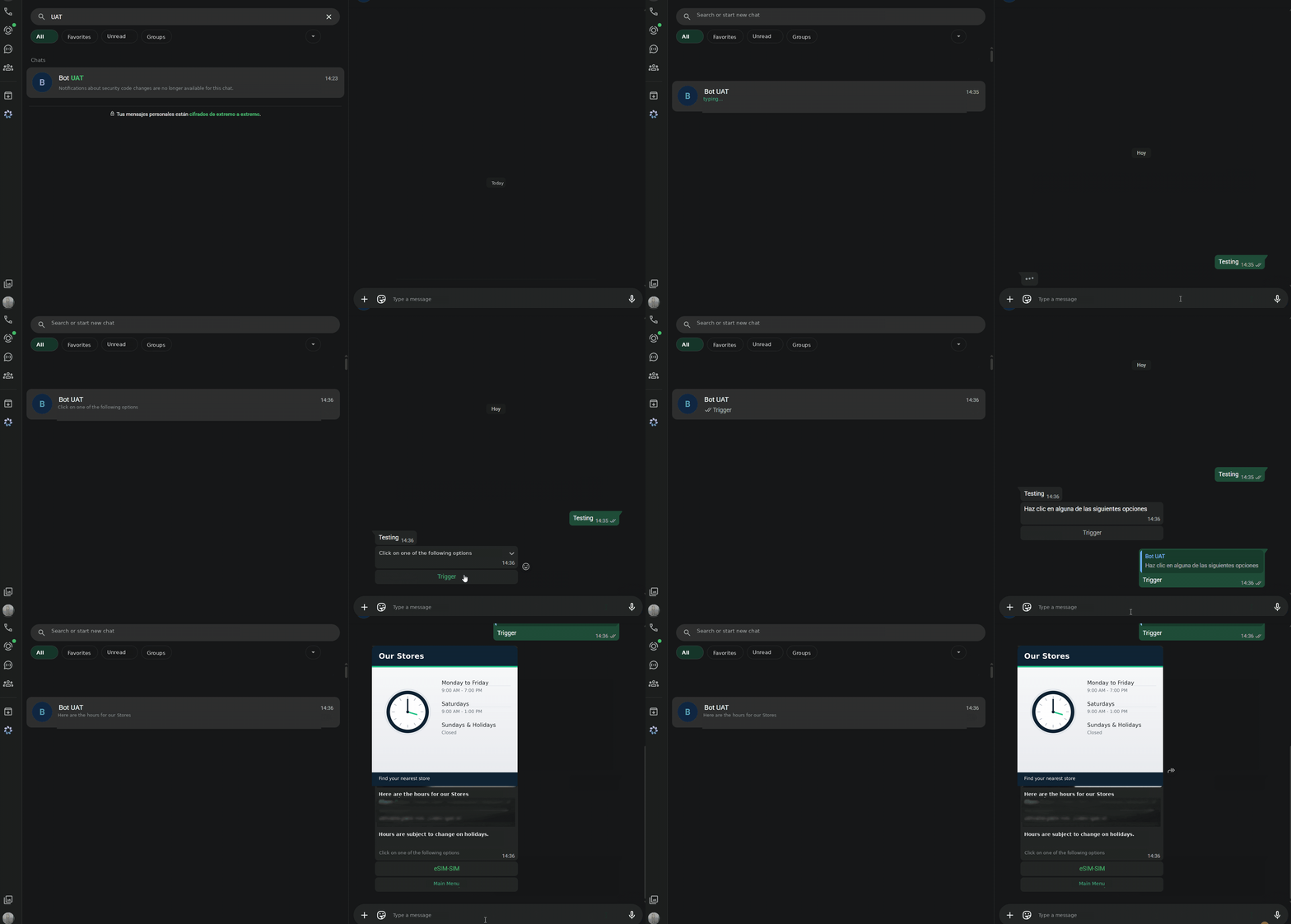
• Then, during a conversation, clicking on it will reliably trigger that intent directly.
Key point: This behavior is equivalent to that of the “Next Step” button that already existed in Studio.
 It does not replace the current alternatives but adds a new option within the Virtual Assistant platform for virtual assistants using the new conversational engine. It does not replace the current alternatives but adds a new option within the Virtual Assistant platform for virtual assistants using the new conversational engine.
|
 Different use cases:
- When a button must always trigger a specific intention: for example, a “View Promotions” button can be directly linked to the Promotions intent, regardless of how the text displayed on the button is worded or how the matching engine evolves.
- When an exact match is required: in flows where a workaround was previously used to simulate this behavior, it is now possible to opt for a direct link between the button and the intention.
- Manual button settings used in WhatsApp templates: When you need to adjust an existing button, you can directly modify the behavior of a Quick Reply to associate it with a specific intent, without having to adjust Engage.
| Existing buttons that used the exact-match workaround will not be affected; in other words, if you had buttons created using the previous method, you’ll need to manually reconfigure them with the new type to take advantage of this feature in the button editor.
|
 See below for an example of how the user will see the previous configuration in action on the WhatsApp channel.
 You might be interested in the differences between the Message Button and the Intent Trigger Button.