When transfers rules are met, the conversation is transferred to an agent along with the full conversation history, allowing them to continue the interaction without losing context.
• You can use bold and italic text formatting in responses. Additionally, on FB, IG, and WA channels, underlined text formatting is also supported.
• Genesys Cloud does not support image sharing. If image files are sent, the image URL will appear as a link, so the agent can access it.
• If the user sends voice messages via WhatsApp, Facebook Messenger, or Instagram, these will be transcribed to text, so the agent can receive and respond to them.
• If you have multiple credentials, you must have a bot available for each one.
• The integration must be requested via a Service Request
 View integration requirements.
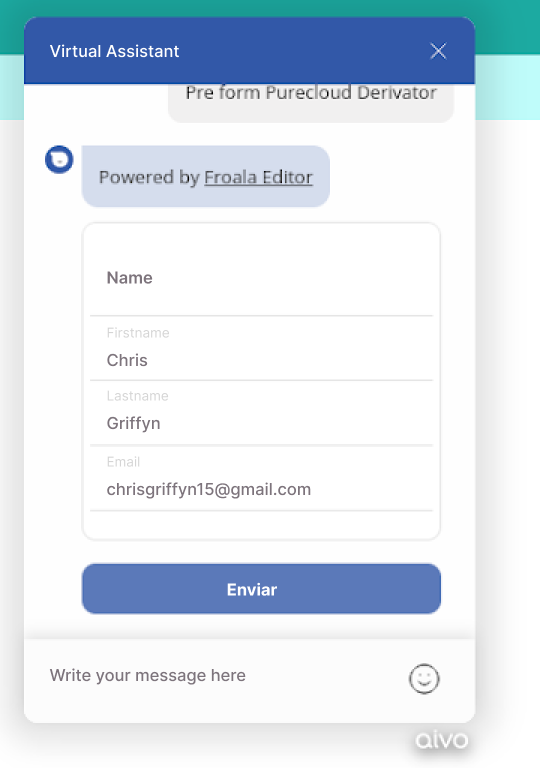
• To allow the agent to see the user's name, you must request the creation of a preform via a Service Request, so the user can enter their information.
When requesting the preform, to display the user’s displayName with first and last name, the firstName and lastName fields must be included. If these fields are not present or the user doesn’t complete them, the system will default to the value of the name field. If the name field is also empty, a message will appear indicating that the name is unknown. For FB, WA, and IG, the name field is directly reflected, as that is Meta's default configuration. Example of Preform
 The conversation will end if the agent closes it or if the user closes the chat window. However, users can only end the chat on web channels, other channels do not allow the user to close the chat window. In Genesys, the agent will see the message “chat ended.” If you want the Virtual Assistant to inform the user of the agent’s name when transferring the conversation, you must edit the "person_agent" section and the "name" field in the Genesys platform. Otherwise, the message will display as “Agent is now available to assist you.” You can find the step-by-step instructions here, and a visual guide is available in the tour at the end of the article.
 Important: Since we are not part of the Genesys technical support team, our assistance is limited to aspects that directly involve our platform:
✓ Creating the integration at the points relevant to our platform.
✓ Configuring conversation routing from the Virtual Assistant.
✓ Implementing pre-forms in the Virtual Assistant, if applicable, before the routing.
You should contact the official Genesys support team for any other technical questions or internal information related to Genesys.