
 When configuring it, you’ll find the node’s response field is a scrollable text area, so you can write longer messages while keeping the content visible as you edit.
Pressing the Enter key within this field inserts a line break, which will be displayed the same way across all channels where the response is sent.

 Below, you’ll also find descriptions of the various options you can configure in the node:
- Mustache usage: allows you to use variables within the answer node; all variables must be enclosed in double curly braces {{ }}. For example: Hello {{name}}, your balance is {{balance}}.
- These variables are read from the `msg` object; that is, for the previous example to work, `msg.name` and `msg.balance` must be defined (for example, using a `function` node) before the `answer` node.
- Learn more about using Mustache at this link.
- Emoji usage: Emojis help improve the user experience, and you can include them in responses using their respective hexadecimal code or, if available, their corresponding shortcode on platforms such as WhatsApp, Facebook, and Instagram.
- Complements: In the downloadable example, you’ll find how to concatenate two nodes to generate a response using the form complement.
- Line break: You can see in the example flow how to insert a line break in the web channel and on WhatsApp.

 Also, keep in mind that in an Answer node, you cannot include executable code or use HTML tags that do not serve a stylistic purpose for the text, as it has a series of validations in place to prevent misuse of its function.
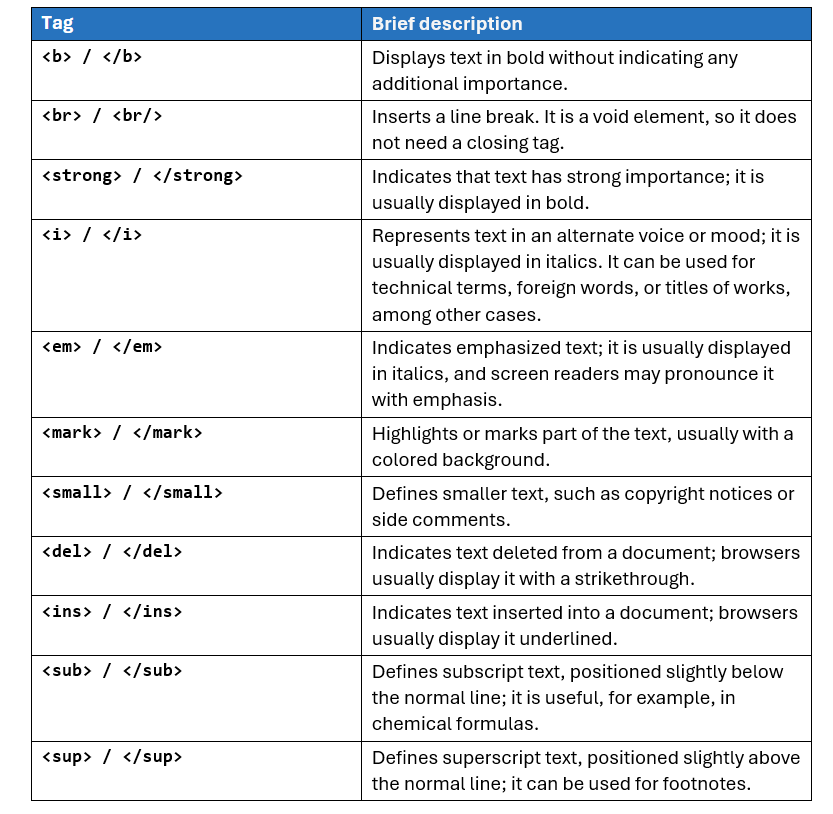
 Brief Description of HTML Tags allowed in this node:
Opening and closing tags work together. Closing tags—for example, —indicate where the affected content ends and have no independent function.
 Download the complete flow with all the examples at this link.

 Key tip: In all cases, you can test the node’s output simply by running the `inject` command in each flow.

 Watch the video below to learn about the node’s properties: