
 Before you begin
Break request control must be enabled by a user with the Administrator role in Settings → General.
 To learn how to enable it, see Enable break request control for Supervisors.
 Note: Break request control only requires approval when changing from Online to a pause status. Returning to Online does not require approval.

 How to manage requests
When an agent selects a pause while Online, a request is sent for review. Online Supervisors and Supervisor Agents receive a real-time notification.
 To resolve it:
- Go to Monitor → Break Requests.
- View agents’ pending requests.
- Approve or reject the request as appropriate. You can manage requests individually or in bulk.
 The request is resolved when the first Supervisor or Supervisor Agent approves or rejects it. All others see the updated status automatically, and the agent receives a notification with the decision.
 While the request is pending, the agent remains Online and can continue receiving new conversations.
 What happens when a request is approved or rejected
- If rejected, the agent remains Online.
- If approved and Pre-pause is not enabled, the agent’s status immediately changes to the requested pause, whether or not they have active conversations.

 If Pre-pause is also enabled
When both features are enabled, the request is approved first, and the agent’s active conversations at that time are then taken into account:
- If the agent has no active conversations, they move directly to the approved pause.
- If the agent has active conversations, they enter Pre-pause: they continue handling conversations already assigned to them but stop receiving new ones. Once they close the last active conversation, their status automatically changes to the approved pause.
Pre-pause begins after approval, not while the request is pending. To learn how it works, see Enable Pre-pause mode for Agents.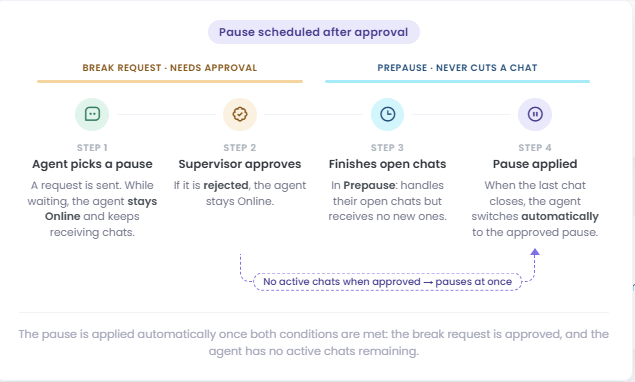

 Key facts when both features are enabled
- While waiting for approval, the agent cannot select another pause. They can select Online to cancel the request.
- If a Supervisor changes an agent’s Online status to a pause in Live, a request requiring approval is also created.
- The break request feature cannot be disabled while agents have pending break requests.
To learn how statuses work in general and how they relate to agent availability, see Status and Pauses in Live.
 Explore the section in the following interactive tour: