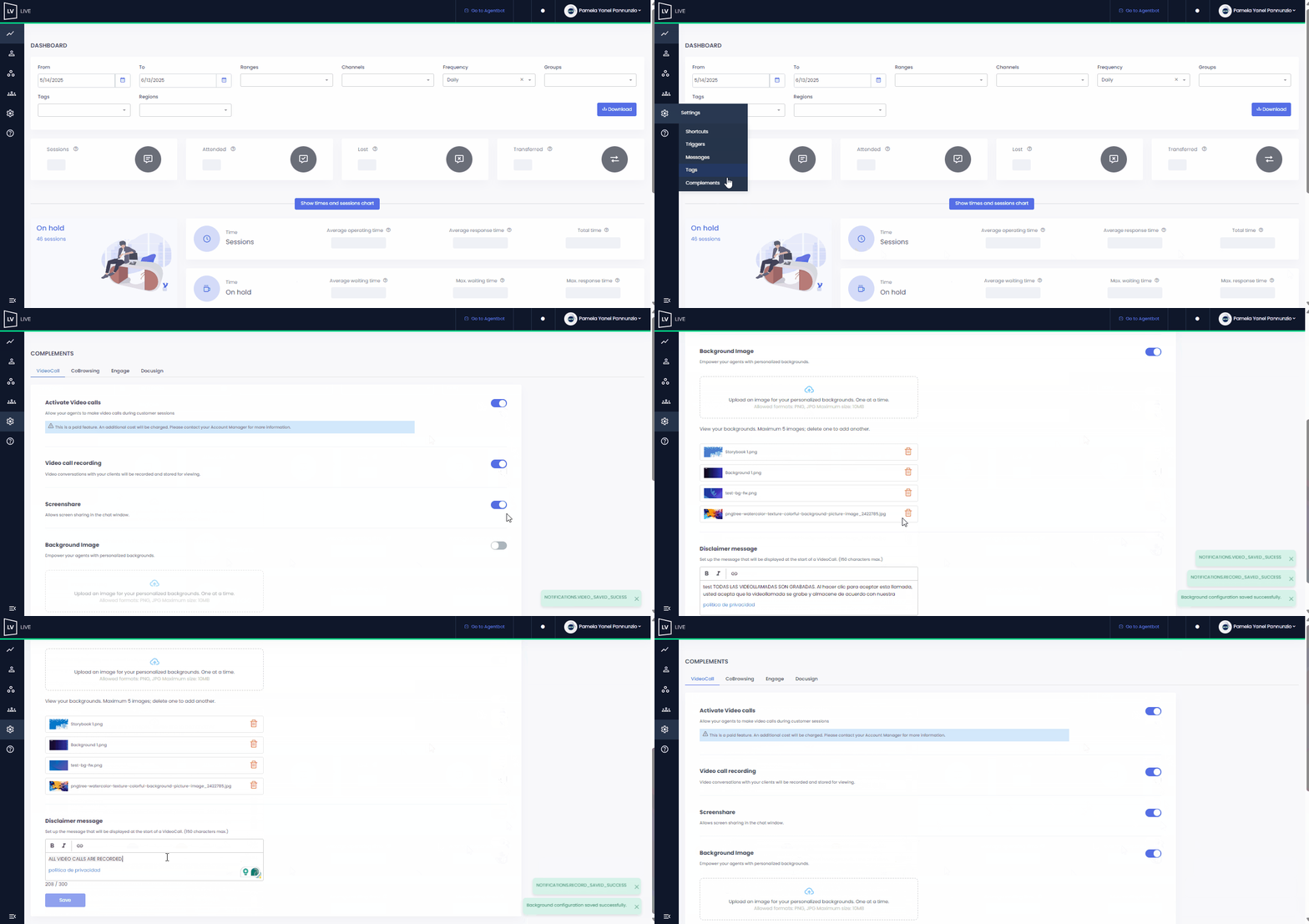
On the same screen, you can also activate the option to save recordings of each video call if needed. If enabled, recordings can be downloaded from the Chat Report. Recordings will be stored for up to 6 months. However, it’s important to verify the conditions of your plan with your CSM or AM.
You can also enable the screen sharing feature for both agents and customers during the video call.
Next, you will find the option to add custom backgrounds for your agents to use during video calls. You can upload up to 5 images in PNG or JPG format, with a maximum size of 10 MB each. Currently, this option is incompatible with Firefox and Safari browsers, so agents must use a different browser to utilize this feature.
Lastly, you will be able to configure the disclaimer message that will be shown to the customer before starting the video call.
Once you’ve completed the configurations, go to the Users section. There, you can grant access to the designated agents, enabling them to initiate video calls with customers.
 Keep in mind that you can only configure this feature if your role is Supervisor, Agent Supervisor, or Administrator, and that the Video Agent functionality applies only to conversations on the Web channel. This feature has an additional cost, so we recommend checking with your Account Manager or CSM to activate it.