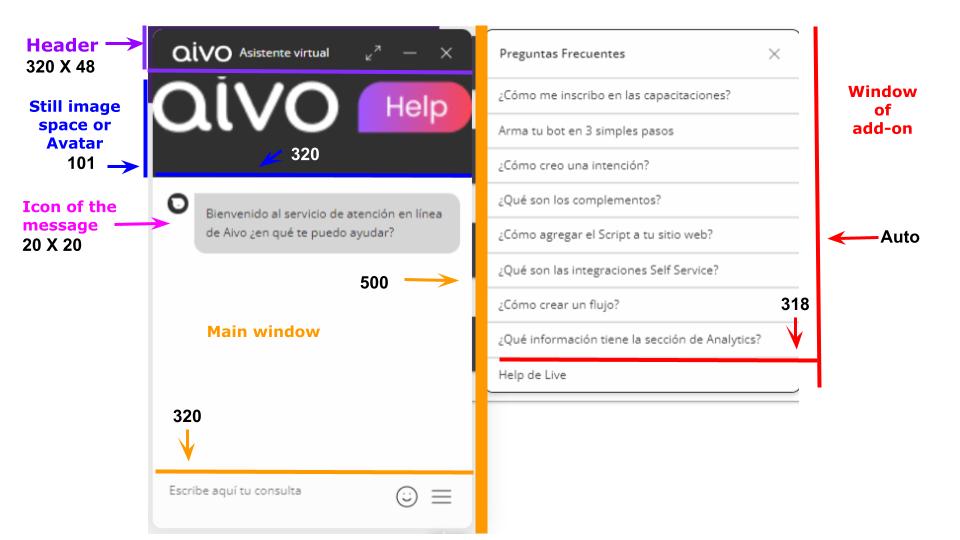
First, note that all editable components of the web chat window are preset in the 'Configurations' section of the specific web channel you want to adjust. You can find detailed steps in this link.
- The chat window size is standard, with the following dimensions:
- Main window: 320 x 500 pixels
- Complement window: 318 pixels x auto.
- Customization of these dimensions is not possible. However, you can choose to include the add-in window with FAQs or opt to disable this configuration.
- Header: Logo or branding can be added.
- Header size: 320px wide x 48px high (including padding).
- Maximum logo size: 185px wide x 35px high.
- Maximum file size: 8 MB.
- Recommended size for logo or branding:While this may vary depending on the proportions of the uploaded element, title configuration, window settings, and length, the standard recommendation is:
- Minimum width: 50px.
- Maximum width: 88px.
- Supported formats: JPG, PNG, and GIF.
- It is not possible to resize the header or footer.
- Message Icon: To customize the interactions of the virtual assistant, you can add an image and rename it.
- Image format: PNG, JPG, or GIF.
- Maximum file size: 8 MB.
- Size within the window: 20 x 20 pixels.
- Avatar: You can incorporate an avatar into the chat window, either a static image or an animation with different reactions based on interactions. This feature can be enabled or disabled via the channel manager.
- Color: The chat window can be customized with the company's institutional or representative color in hexadecimal format.
- Close button: Allows enabling or disabling the option to close the chat window.
- Typography: The default text font is Open Sans and cannot be changed. However, the font size can be adjusted. By default, it is set to "small," but three size options are available:
- Small: 11px
- Medium: 12px
- Large: 13px