Complements are tools available in Virtual Assistant that you can incorporate into your response configuration to enhance the user experience during a conversation.
They enable you to display content in a more user-friendly manner, incorporating visual and interactive formats that can significantly enhance the readability and comprehension of content compared to plain text alone. This helps address multiple questions in a single message effectively, improving usability.
 There are different types of complements, each with specific features and considerations depending on the channel where they are used.
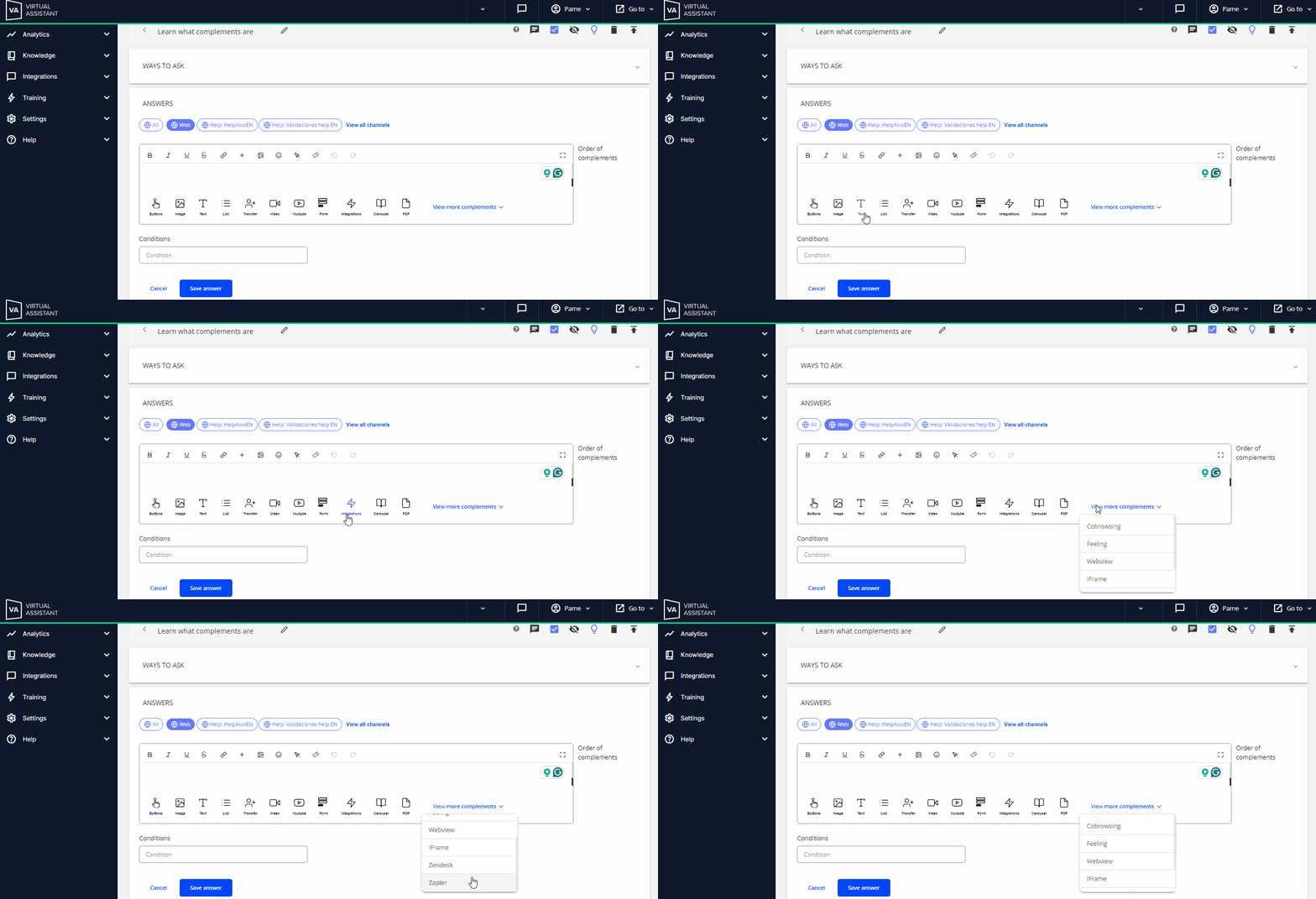
 Click on the titles below to learn more:
| Buttons | Image | Text | List | Transfer | Video | YouTube | Form | Integrations |
| Carousel | PDF | Feeling | Webview | Iframe | Zendesk | |||
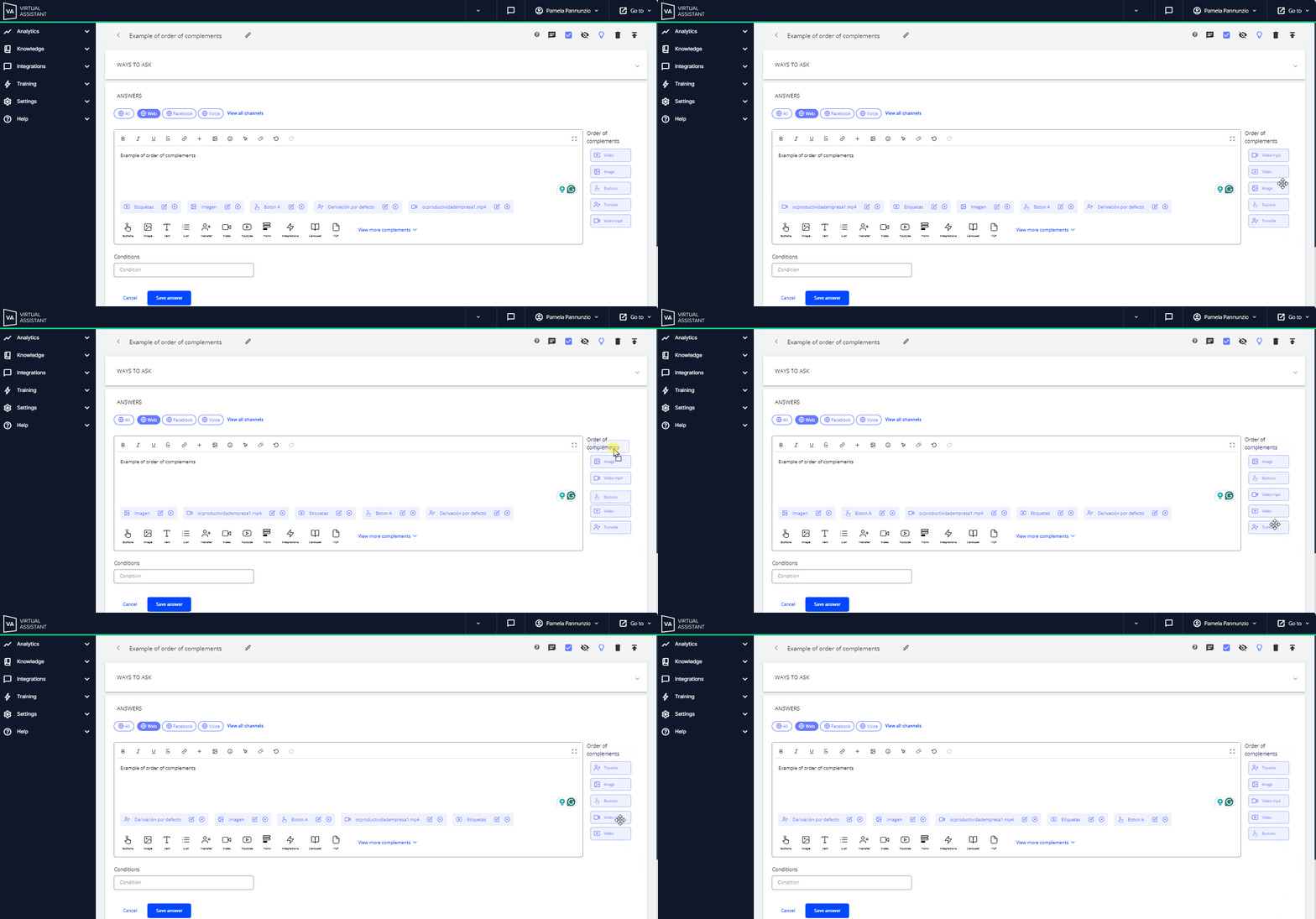
 Additionally, when adding more than one complement in the same response, you can set their order using the “Order of complements” column on the right side of the text box. Each complement will be identified by its type (e.g., Image, Button, etc.) and not by the custom name you may have assigned. However, moving them up or down within the panel allows you to see their position changes in real time and define the order in which they appear in the response.
 Key facts:
- The text in the response box will always be displayed before any complement.
- The Web channel is the only one that guarantees the exact order of the complements as configured.
- In other channels, the order may vary depending on content loading speed. For example, on WhatsApp, if an image is larger than a video, the video might appear first, regardless of the defined order.