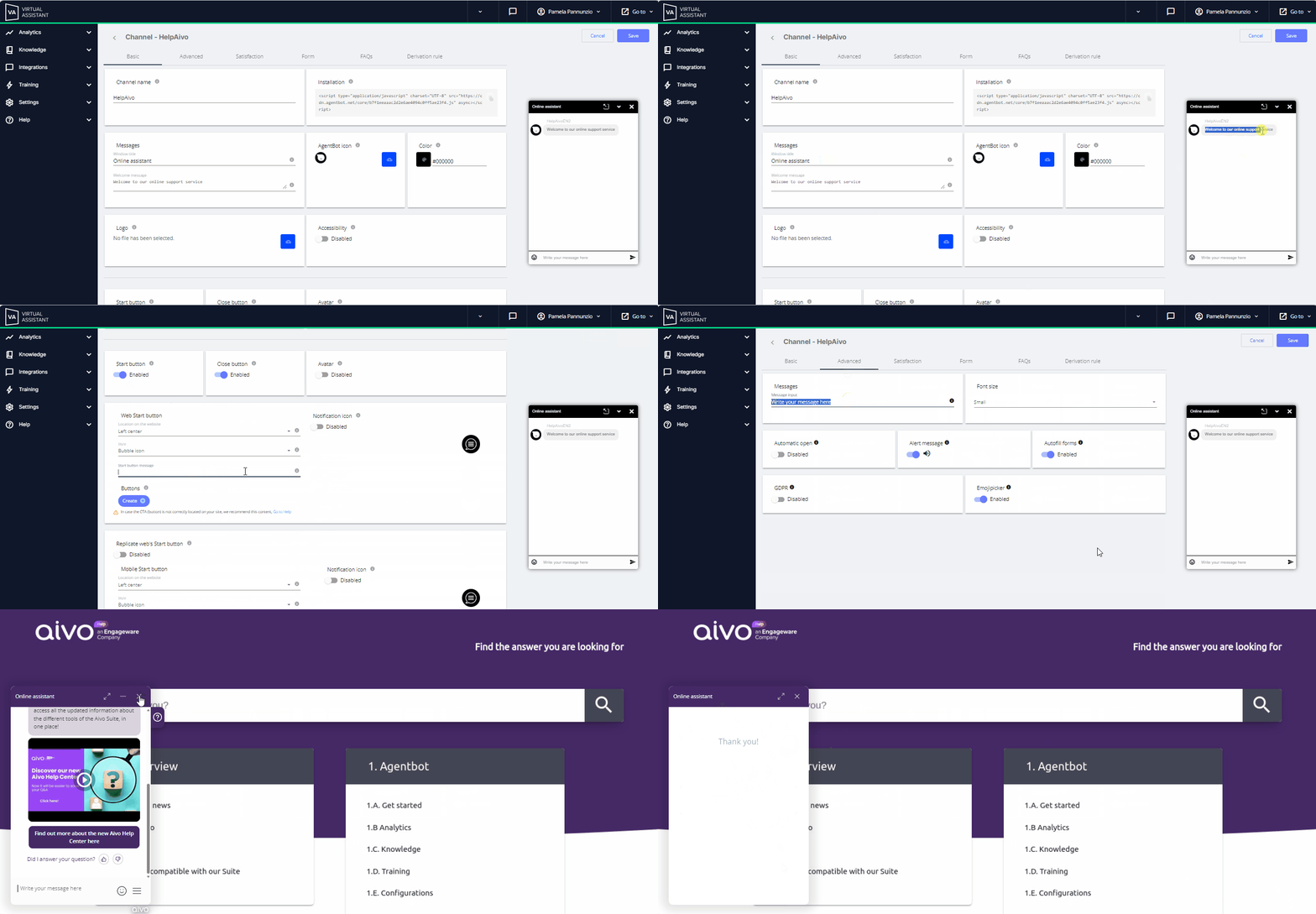
You can edit all chat window messages from the web channel you need to configure. This helps align messages with your brand or the message you want users to see.
 Here’s how to configure a web channel
 Key data:
- In each tab within the Virtual Assistant platform, you’ll find tooltips to guide you.
If you plan to use emojis in your messages, check the list of emojis recognized by the platform.
If you need to add the WebView complement to your welcome message, request it from the Aivo Support Center by sending the link that should be displayed.
The messages you can configure are:
-
Basics Tab:
-
Window Title: located in the header of the chat window, next to your brand’s image.
 You can use this space to indicate that this is a virtual assistant.
- Welcome message: You can write the exact text your virtual assistant will use to start conversations. For example: Hello! I’m Aivo’s virtual assistant. How can I help you today?
- Start button message: Here you’ll set the message your customers will see on the start button. Note that in this case, you cannot add emojis. ➡ Learn more here.
-
Window Title: located in the header of the chat window, next to your brand’s image.
-
Advanced tab:
- Message input: This is the placeholder text—that is, the message in the text box where your customers will start typing. Include a message that encourages your users to message the bot. For example: Type your question here.
-
Satisfaction: These messages will only appear if you enable the survey.
- Question to be presented to the user: You will write the question that the user will receive to invite them to take the survey.
- Open feedback: You can suggest that the user provide more information about the reason for their rating in the survey.
- Include greeting message at the end of the survey: You can set up a thank-you message and survey closing message.
 On the right side of each module, you’ll see a preview of how your window looks with the changes you make.
 In the image below, you’ll see the settings area on the platform and how each configured message appears in the chat window.